
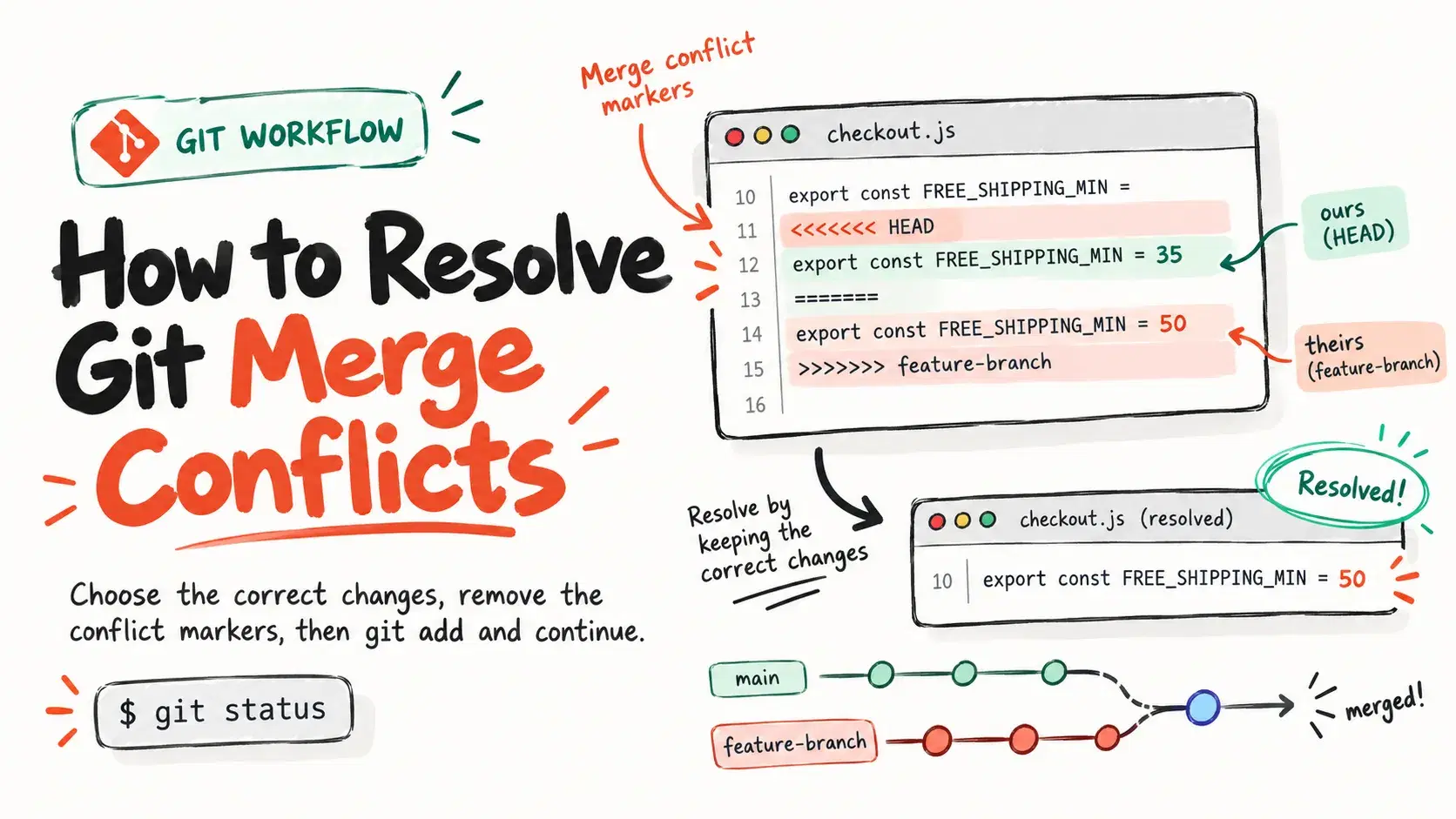
To resolve a Git merge conflict, open each file that git status lists under "Unmerged paths", edit the block between <<<<<<< and >>>>>>> down to the code you actually want, delete the markers, then run git add <file> and git commit. If you would rather start over, git merge --abort puts the branch back exactly as it was.
The editing is rarely the hard part. The hard part is knowing which side is which, because Git's "ours" and "theirs" flip during a rebase, and VS Code's "current" and "incoming" flip with them. Everything below was run on Git 2.51.0 (the latest source release is 2.56.0, from September 28, 2026) against one small example: a checkout.js file where main lowered the free-shipping minimum from $50 to $35 and a holiday-promo branch lowered it to $25.
The Fastest Way
When a conflict block is long, paste the two sides into the Diff Checker to see exactly which lines differ, word by word, before you decide what to keep. It compares text only; it does not touch your repository, so you still make the edit and run git add yourself.
What a Conflict Looks Like
Merging holiday-promo into main stops with a conflict because both branches changed the same line:
Bash$ git merge holiday-promo Auto-merging checkout.js CONFLICT (content): Merge conflict in checkout.js Automatic merge failed; fix conflicts and then commit the result. $ git status On branch main You have unmerged paths. (fix conflicts and run "git commit") (use "git merge --abort" to abort the merge) Unmerged paths: (use "git add <file>..." to mark resolution) both modified: checkout.js
Git writes both versions into the file, separated by markers. Everything above ======= is the branch you are on (HEAD), everything below it is the branch you are merging in:
jsexport const CURRENCY = "USD" <<<<<<< HEAD export const FREE_SHIPPING_MIN = 35 ======= export const FREE_SHIPPING_MIN = 25 >>>>>>> holiday-promo export function shippingCost(subtotal) { return subtotal >= FREE_SHIPPING_MIN ? 0 : 7.99 }
The lines outside the markers merged cleanly. Only the block between them needs a decision. On a large merge, git diff --name-only --diff-filter=U prints just the files that still have conflicts.
Resolve It on the Command Line
Edit the file to the result you want, which can be one side, the other, or something new. Here the team keeps $35, so the block becomes a single line with no markers left. Then stage the file, which is how Git learns the conflict is resolved, and finish the merge:
Bash$ git add checkout.js $ git commit --no-edit [main bec6cfe] Merge branch 'holiday-promo' $ git log --oneline --graph * bec6cfe Merge branch 'holiday-promo' |\ | * 455b2d8 Holiday promo: free shipping over $25 * | 424022f Lower free shipping threshold to $35 |/ * 225abac Add checkout config
git merge --abort is the escape hatch at any point before that commit. It restored the working tree and left main on "Lower free shipping threshold to $35" in my test.
Take One Side With --ours or --theirs
When you know one side is right for a whole file, skip the editing. The git-checkout documentation says --ours and --theirs check out stage 2 or stage 3 of an unmerged path, which means the entire file from that side, so any change the other side made elsewhere in the same file is dropped too:
Bash$ git checkout --ours checkout.js # FREE_SHIPPING_MIN = 35, from main $ git checkout --theirs checkout.js # FREE_SHIPPING_MIN = 25, from holiday-promo $ git add checkout.js
This is the "git merge conflict use theirs" answer most people are searching for, and it is right for files like lockfiles or generated code, where you take one side and regenerate rather than merge by hand.
Why a Rebase Swaps Ours and Theirs
The same two flags mean the opposite thing during a rebase. The git-rebase documentation explains that a rebase replays your commits on top of the upstream branch, so "the side reported as ours is the so-far rebased series, starting with <upstream>, and theirs is the working branch. In other words, the sides are swapped."
I checked it from the holiday-promo branch both ways:
Bashon holiday-promo, git merge main: --ours -> export const FREE_SHIPPING_MIN = 25 --theirs -> export const FREE_SHIPPING_MIN = 35 on holiday-promo, git rebase main: --ours -> export const FREE_SHIPPING_MIN = 35 --theirs -> export const FREE_SHIPPING_MIN = 25
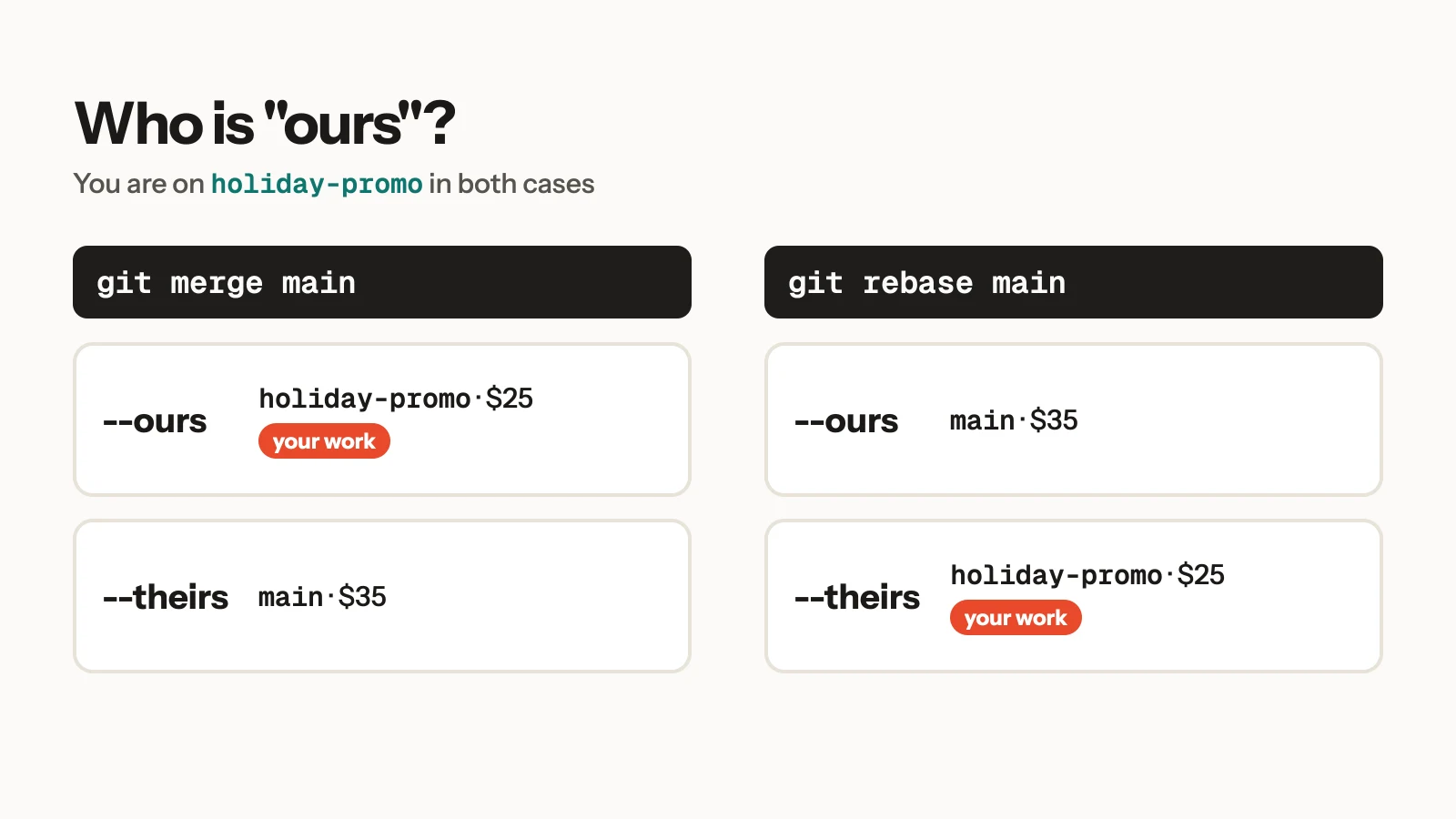
So during a rebase, git checkout --theirs keeps your own work. git pull --rebase behaves the same way, as the git-checkout page notes. When a rebase conflict is resolved, run git add and git rebase --continue, or git rebase --abort to back out.
See the Common Ancestor With zdiff3
The default marker style hides what the line looked like before either branch touched it, which is often the clue you need. Set merge.conflictStyle before merging and Git adds a third section, marked |||||||, with the original:
Bash$ git config merge.conflictStyle zdiff3 $ git merge holiday-promo $ cat checkout.js export const CURRENCY = "USD" <<<<<<< HEAD export const FREE_SHIPPING_MIN = 35 ||||||| e4b05f2 export const FREE_SHIPPING_MIN = 50 ======= export const FREE_SHIPPING_MIN = 25 >>>>>>> holiday-promo
Now it is obvious that both branches lowered a $50 minimum, which turns a guess into a decision. The git-config documentation describes zdiff3 as diff3 with matching lines moved out of the conflict region when they sit near its start or end, so it keeps blocks smaller. If a conflict is already in your file, git checkout --conflict=diff3 checkout.js rewrites it in that style.
Resolve Conflicts in VS Code
VS Code shows CodeLens actions above every conflict: Accept Current Change, Accept Incoming Change, Accept Both Changes and Compare Changes. The VS Code documentation warns that accepting both does not guarantee valid code, and in our example it would leave two FREE_SHIPPING_MIN declarations, which is a syntax error. For larger files it also offers a 3-way merge editor.
"Current" and "incoming" follow Git's sides. The VS Code docs define current as the checked-out target branch during a merge, but during a rebase as "the new base plus commits already replayed", with incoming being "the commit from your branch that Git is currently replaying". Same swap, different words. After accepting, save, stage the file in the Source Control view and complete the merge or rebase.
Resolve Conflicts on GitHub
On a pull request, the Resolve conflicts button opens a web editor that shows the same markers. GitHub's documentation limits it to "simple competing line change conflicts". For anything else, or when the button is deactivated, resolve it locally. It also warns that resolving conflicts on GitHub merges the entire base branch into the head branch, and that if the head branch is the default or a protected branch, you may be asked to create a new head branch.
Common Errors
Each of these was reproduced with a conflict still open in checkout.js.
error: Committing is not possible because you have unmerged files.You rangit commitbefore staging the resolved file. Fix the markers,git addthe file, then commit.fatal: cannot switch branch while mergingGit refusesgit switchmid-merge and suggestsgit merge --quitorgit worktree add. Finish or abort the merge first.error: Merging is not possible because you have unmerged files.A secondgit mergehit the open conflict. Same fix.error: Pulling is not possible because you have unmerged files.git pullis a merge too, so it is blocked until the current one is resolved.checkout.js:2: leftover conflict markerThis isgit diff --checkdoing its job. Run it before you stage: in my test,git commit -amcommitted the file with all three markers still inside, because-astages the file, and staging is what tells Git the conflict is resolved.
When Not to Do This
Do not hand-merge a file you do not understand to make the error go away. If the conflict is in someone else's code, git merge --abort costs nothing, and the person who wrote the other side can resolve it in a minute. Generated files are the other exception: take one side with --ours or --theirs and rerun the tool that produced them, because a hand-edited lockfile or build output is more likely to be wrong than either original.
Conclusion
Every resolution follows the same three steps: read the block, make it the code you want, and git add the file. The two things that cause real damage are using --ours or --theirs during a rebase without remembering the swap, and committing with -a before the markers are gone. Turn on zdiff3 once with git config --global merge.conflictStyle zdiff3, run git diff --check before you commit, and most conflicts take a minute.
Related DevToolLab Tools
- Diff Checker - paste both sides of a long conflict block to see the word-level differences before you choose.
- Git Command Generator - look up the exact command for undoing the last commit, squashing with rebase or recovering a deleted branch, with each flag explained.
- .gitattributes Generator - set line-ending rules so mixed CRLF and LF files stop producing conflicts that are not real changes.
- JSON Diff - compare two versions of a conflicted JSON config by property path instead of line by line.