
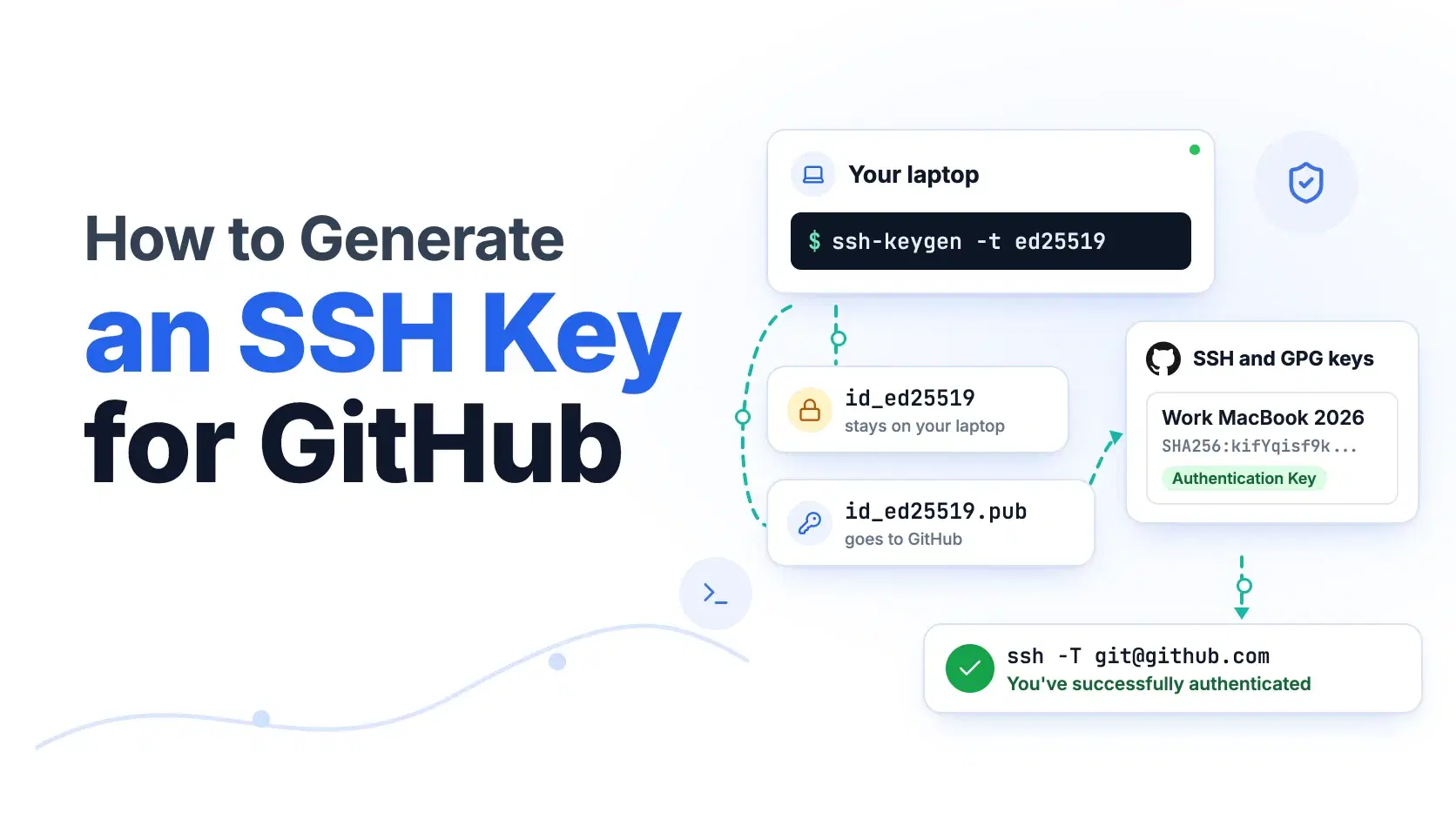
To generate an SSH key for GitHub, run ssh-keygen -t ed25519 -C "you@example.com", press Enter to accept the default path, and set a passphrase. Load the private key with ssh-add, paste the contents of ~/.ssh/id_ed25519.pub into GitHub under Settings, SSH and GPG keys, then run ssh -T git@github.com to confirm it works.
The commands are short. What goes wrong is everything around them: a key saved with the wrong permissions, an agent that is not running, a remote still pointing at an HTTPS URL, or the private file pasted where the public one belongs. This guide walks one laptop through the whole setup for a repository called acme/billing-api, and every output below was produced on OpenSSH 10.3 on October 1, 2026.
The Fastest Way
If you are on a machine where you cannot run ssh-keygen, the SSH Key Generator creates an RSA (2048 or 4096-bit) or ECDSA (P-256 or P-384) key pair in your browser with the Web Crypto API, and the private key never leaves the page. We checked its output against OpenSSH: ssh-keygen -y reads the downloaded private key and derives a public key byte-for-byte identical to the one the tool shows. Two caveats. It does not make Ed25519 keys, the type GitHub recommends, and the private key comes out without a passphrase, so add one before you use it:
Bashchmod 600 ~/.ssh/id_rsa ssh-keygen -p -f ~/.ssh/id_rsa
That command also rewrites the file in OpenSSH's own -----BEGIN OPENSSH PRIVATE KEY----- format. Everywhere ssh-keygen is available, use it instead; the rest of this guide does.
Generate the Key With ssh-keygen
Ed25519 is the right choice in 2026. GitHub's docs recommend it, and OpenSSH 9.5, released October 4, 2023, made it the default key type for ssh-keygen. Fall back to ssh-keygen -t rsa -b 4096 only for a legacy server that cannot handle Ed25519. Since March 15, 2022, GitHub rejects new DSA (ssh-dss) keys.
On macOS and Linux, open Terminal. On Windows 10 (build 1809 or later) or Windows 11, the OpenSSH client is a built-in optional feature, so the same command works in PowerShell or Git Bash. The -C flag is only a label, but use your GitHub email so you can tell keys apart later.
Bash$ ssh-keygen -t ed25519 -C "dev@example.com" Generating public/private ed25519 key pair. Enter file in which to save the key (/Users/you/.ssh/id_ed25519): Enter passphrase for "/Users/you/.ssh/id_ed25519" (empty for no passphrase): Enter same passphrase again: Your identification has been saved in /Users/you/.ssh/id_ed25519 Your public key has been saved in /Users/you/.ssh/id_ed25519.pub The key fingerprint is: SHA256:kifYqisf9kScRjNaxtAuIvhOta4Xa0ep4fjGK2DpyGg dev@example.com
Set a passphrase. Without one, anyone who copies id_ed25519 (a stolen laptop backup, a careless scp, a malicious npm postinstall script) can push to every repository you can. The agent in the next step means you type the passphrase once per session, not on every git push.
You now have two files. id_ed25519 is the private key, created with mode 600 so only your user can read it. id_ed25519.pub is one line, safe to share:
textssh-ed25519 AAAAC3NzaC1lZDI1NTE5AAAAIHlQVxmXE/ngpLeRCrV3ZASf91saWhJGlAdPiPJNFOpz dev@example.com
If ssh-keygen asks to overwrite an existing id_ed25519, say no and type a new path such as ~/.ssh/id_ed25519_work. Overwriting silently breaks every server that trusted the old key.
Load the Key Into ssh-agent
The agent holds the decrypted key in memory so Git can use it without prompting. Each platform starts it differently.
macOS. The agent already runs. Add the key and store the passphrase in Keychain with Apple's built-in ssh-add, not one from Homebrew or MacPorts:
ssh-add --apple-use-keychain ~/.ssh/id_ed25519
On macOS before Monterey (12.0), the flag was -K. Then add this block to ~/.ssh/config so the key reloads after a reboot:
textHost github.com AddKeysToAgent yes UseKeychain yes IdentityFile ~/.ssh/id_ed25519
Linux. Start an agent for the current shell, then add the key:
eval "$(ssh-agent -s)"
ssh-add ~/.ssh/id_ed25519
Windows. In an administrator PowerShell window, set the ssh-agent service to start and run it, then add the key from a normal window. These commands come from GitHub's and Microsoft's documentation; we did not run them on a Windows machine for this guide.
powershellGet-Service -Name ssh-agent | Set-Service -StartupType Manual Start-Service ssh-agent ssh-add $env:USERPROFILE\.ssh\id_ed25519
If Git for Windows keeps asking for the passphrase anyway, it is using its own bundled ssh.exe, which cannot see the Windows agent. Point it at the system client with git config --global core.sshCommand "C:/Windows/System32/OpenSSH/ssh.exe".
Add the Public Key to GitHub
Copy the public key, never the private one. On macOS, pbcopy < ~/.ssh/id_ed25519.pub puts it on the clipboard; on Windows, cat ~/.ssh/id_ed25519.pub | clip; on Linux, cat it and copy the line.
In GitHub, click your profile picture, then Settings, then SSH and GPG keys in the Access section, then New SSH key. Give it a title that names the machine ("Work MacBook 2026"), leave the type as Authentication Key, paste, and save. GitHub may ask you to confirm your password.
If you already use the GitHub CLI, one command does the same thing after gh auth login:
Bashgh ssh-key add ~/.ssh/id_ed25519.pub --title "Work MacBook 2026" --type authentication
GitHub treats authentication and commit signing as separate uses. If you want the same key to sign commits, you have to upload it a second time as a Signing Key.
Test the Connection and Check GitHub's Fingerprint
ssh -T git@github.com
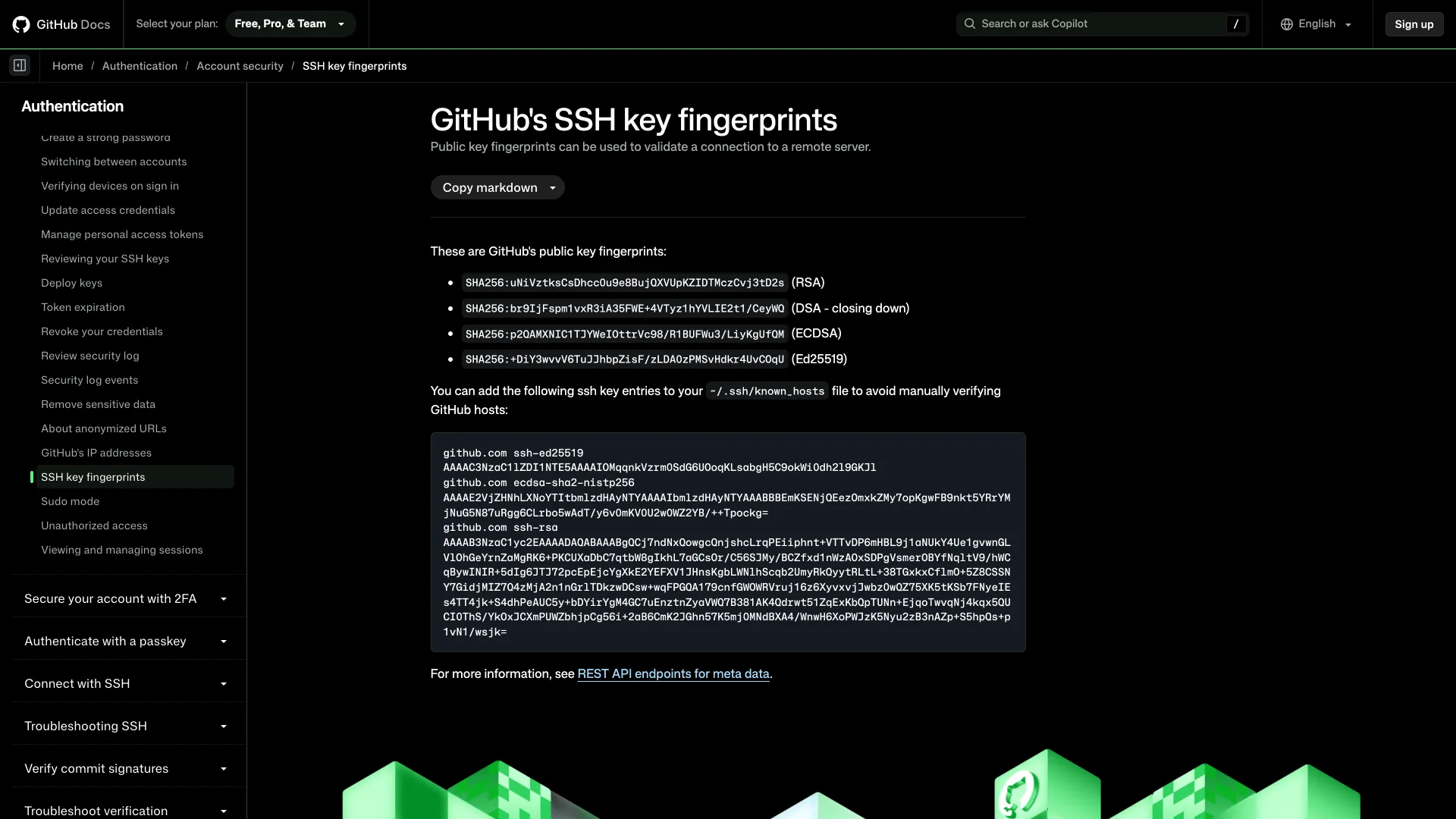
The first time, SSH asks whether you trust the host and prints its fingerprint. Compare it with the list on GitHub's SSH key fingerprints page before typing yes. GitHub's Ed25519 host key fingerprint is SHA256:+DiY3wvvV6TuJJhbpZisF/zLDA0zPMSvHdkr4UvCOqU, and it is what github.com served when we checked on October 1, 2026:
Bash$ ssh-keyscan -t ed25519 github.com 2>/dev/null | ssh-keygen -lf - 256 SHA256:+DiY3wvvV6TuJJhbpZisF/zLDA0zPMSvHdkr4UvCOqU github.com (ED25519)
On success, GitHub's documented reply is Hi USERNAME! You've successfully authenticated, but GitHub does not provide shell access. and the command exits with code 1. That exit code is normal; GitHub just refuses to open a shell.
Switch Your Repository From HTTPS to SSH
A working key does nothing for a clone made over HTTPS. Change the remote, then confirm:
Bash$ git remote set-url origin git@github.com:acme/billing-api.git $ git remote -v origin git@github.com:acme/billing-api.git (fetch) origin git@github.com:acme/billing-api.git (push)
If you keep more than one key, add IdentitiesOnly yes to the Host github.com block in ~/.ssh/config. Without it, SSH offers every key in the agent in turn, and a server with a low attempt limit can reject you before it reaches the right one. ssh -G github.com prints the settings SSH will actually use, which is the quickest way to confirm the config parsed.
Common Errors
git@github.com: Permission denied (publickey). GitHub did not accept any key SSH offered. Check that ssh-add -l lists your key, that the remote user is git and not your username, and that you pasted the matching .pub into GitHub. ssh -vT git@github.com shows each key SSH tries; a line reading Offering public key with your file name means the key was found locally and GitHub does not know it.
WARNING: UNPROTECTED PRIVATE KEY FILE! followed by Permissions 0644 for '/Users/you/.ssh/id_ed25519' are too open. and Load key "/Users/you/.ssh/id_ed25519": bad permissions. SSH refuses a private key other users can read, then falls through to Permission denied. This usually happens after copying keys between machines or downloading them from a browser. Fix it with chmod 600 ~/.ssh/id_ed25519 and chmod 700 ~/.ssh.
Load key "id_ed25519": incorrect passphrase supplied to decrypt private key. The passphrase is wrong. There is no recovery: if you have forgotten it, generate a new key, add it to GitHub, and delete the old one from your account.
Key already in use when saving the key on GitHub. The same public key is already attached to another account or set as a deploy key on a repository. Run ssh -T -ai ~/.ssh/id_ed25519 git@github.com to see which account owns it; a reply naming owner/repo means it is a deploy key. Remove it there, or generate a separate key for this account.
When Not to Do This
Do not reuse your personal key for CI or servers. A key on a build machine should be a repository deploy key or a GitHub App token, scoped to one repository, so a leaked runner does not expose everything your account can reach. And never paste a private key into any website, including a key generator: generate it where it will live, and keep the private half off the clipboard entirely.
Conclusion
For almost every developer in 2026 the whole job is four commands: ssh-keygen -t ed25519, ssh-add, paste the .pub file into GitHub, then ssh -T git@github.com. Ed25519 is the right default, and a passphrase plus the agent costs you one prompt per session, not one per push. If you are on a machine where you cannot run ssh-keygen, generate the pair in the browser and add the passphrase locally with ssh-keygen -p before the key goes anywhere. If you keep a work and a personal GitHub account, give each its own key and a Host block with IdentitiesOnly yes. And if ssh -T still answers Permission denied (publickey), run it with -v before generating anything new: the key is usually fine and simply not the one SSH is offering.
Related DevToolLab Tools
- SSH Key Generator - make an RSA or ECDSA key pair in the browser when
ssh-keygenis not available, then add a passphrase locally withssh-keygen -p. - SSH Config Generator - build the
Host github.comblock withIdentityFileand agent settings instead of typing it from memory, useful once you run separate work and personal keys. - SSH Key Fingerprint Calculator - paste a public key to get its SHA256 and MD5 fingerprints and match it against the key list on your GitHub settings page.
- Chmod Calculator - translate
600and700into read, write and execute bits when SSH rejects a key for bad permissions.
Related Guides
- Best Secret Scanning Tools - catch a private key committed to a repository before it reaches a public branch.
- Post-Quantum Cryptography Migration Guide - where SSH keys sit in a migration inventory and what changes for them.
- How to Use curl - the other command-line tool you will reach for when testing GitHub and API access.
- Best AI Code Execution Sandboxes - why agent-generated code running on your laptop can read
~/.ssh, and how sandboxes stop it.