
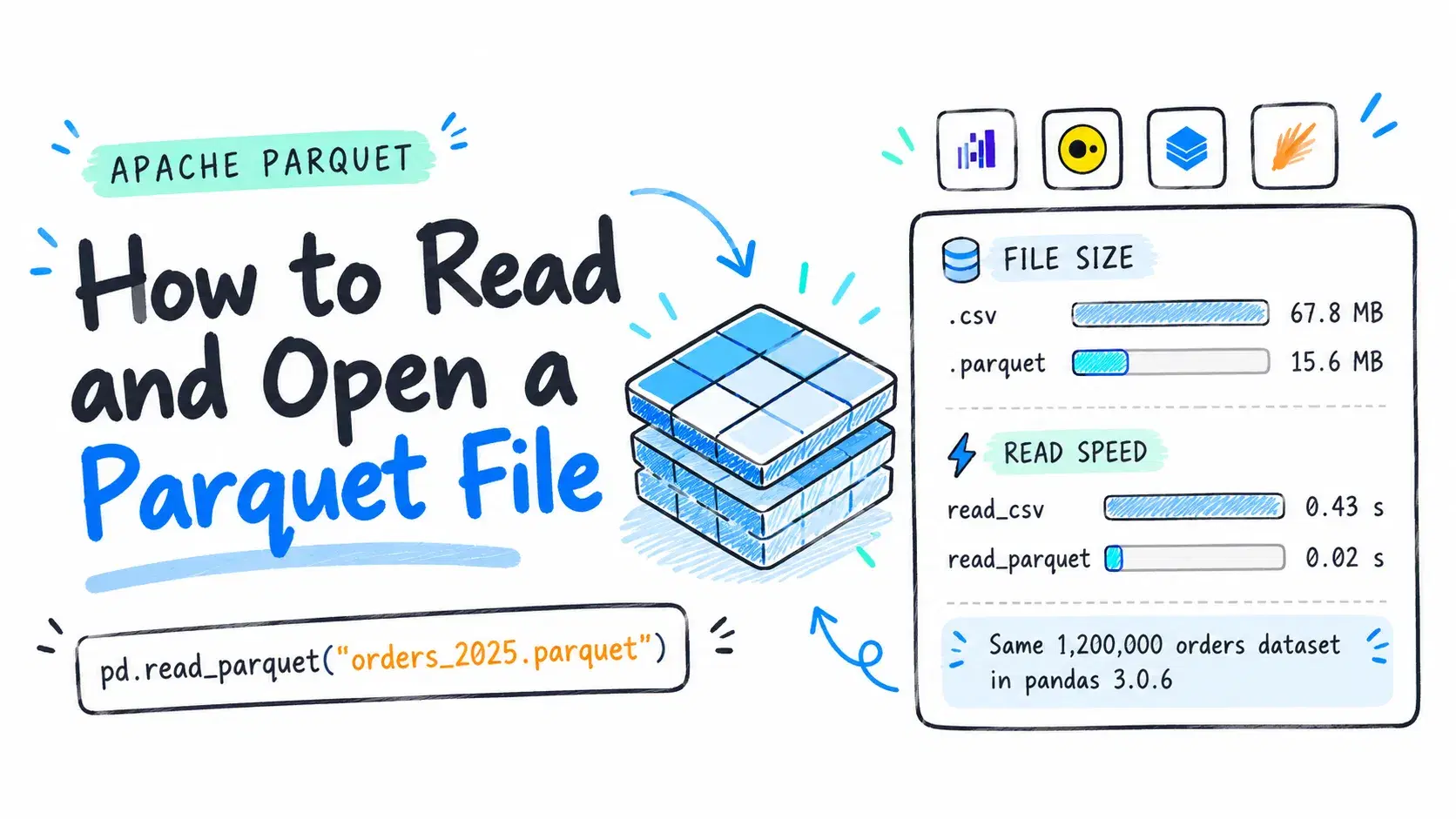
To read a Parquet file in Python, install pyarrow and call pd.read_parquet("orders_2025.parquet"). From a terminal, duckdb -c "SELECT * FROM 'orders_2025.parquet' LIMIT 3" prints the first rows with their column types. To open one without code on Windows or a Mac, drop it into a browser Parquet viewer. A text editor such as Notepad++ only shows binary noise.
The thing to know is that Parquet is a binary, column-oriented format. According to the Apache Parquet file format spec, a file starts and ends with the 4-byte marker PAR1, and the schema and row group locations sit in a footer just before the last marker. Every reader seeks to the end first, then pulls only the columns you ask for. That is why reading two columns is cheap, and why a half-downloaded file fails outright.
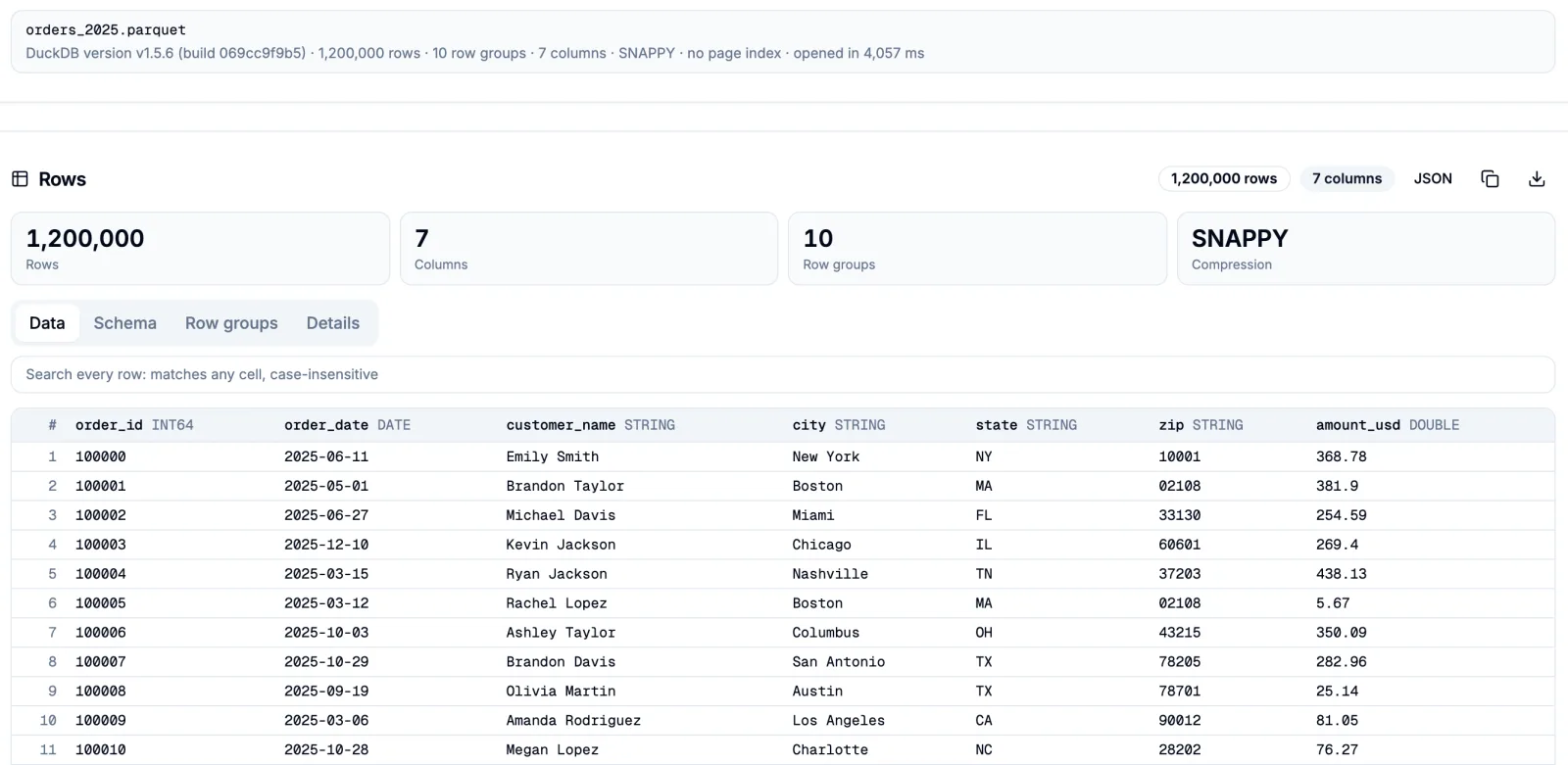
This guide follows one file the whole way: orders_2025.parquet, a 1,200,000-row, 7-column US order export shaped like the one in our large CSV guide, written by DuckDB 1.5.6. It weighs 15.6 MB, against 67.8 MB for the same data as CSV, and holds 10 row groups of 122,880 rows compressed with Snappy. Every output below was produced on October 11, 2026, on an Apple M3 Pro with 18 GB of RAM.
The Fastest Way
Drop the file into the Parquet Viewer. It reads the footer first and decodes column chunks in the browser tab, so orders_2025.parquet showed its schema, its 10 row groups and the first 50 of 1,200,000 rows after 4,057 ms in Chrome, with nothing uploaded. From there you can search every row and export all rows, or only the matches, as CSV or JSON. It decodes Snappy, Gzip, ZSTD and LZ4 pages; a file compressed with Brotli or LZO has to be re-saved first.
When the file is part of a script or a pipeline, pick a reader by where the next step happens:
| Reader | Install | Read call | Measured on orders_2025.parquet |
|---|---|---|---|
| pandas 3.0.6 | pip install pandas pyarrow | pd.read_parquet(path) | full read 0.02 to 0.09 s, 2 columns 0.005 s |
| pyarrow 26.0.0 | pip install pyarrow | pq.read_table(path) | Texas filter 0.006 to 0.009 s |
| Polars 2.0.0 | pip install polars | pl.scan_parquet(path) | December query 0.004 s warm |
| DuckDB 1.5.6 | one binary | SELECT * FROM 'path' | state totals 0.01 to 0.02 s, including startup |
| PySpark 4.2.0 | pip install pyspark plus a JDK | spark.read.parquet(path) | 5.5 s, mostly JVM startup |
The Python timings are the read call alone, best and worst of five runs; the DuckDB and Spark ones include starting the process.
How to Read a Parquet File in Python With pandas
pandas has no Parquet decoder of its own. It hands the file to pyarrow, or to fastparquet if pyarrow is missing, so install pyarrow alongside it:
Pythonimport pandas as pd df = pd.read_parquet("orders_2025.parquet") print(df.shape) print(df.dtypes) print(df[df.city == "Boston"].head(2))
text(1200000, 7) order_id int64 order_date object customer_name str city str state str zip str amount_usd float64 dtype: object order_id order_date customer_name city state zip amount_usd 1 100001 2025-05-01 Brandon Taylor Boston MA 02108 381.90 5 100005 2025-03-12 Rachel Lopez Boston MA 02108 5.67
Two details show up right away. The Boston ZIP code stays 02108, because Parquet stored the column as a string. Running pd.read_csv on the CSV copy of the same data turned that column into integers and printed 2108. And order_date arrives as object, a column of Python date values; pass dtype_backend="pyarrow" to keep it as Arrow's date32[day] instead.
The full read took 0.02 to 0.09 seconds and 139 MB of memory, while pd.read_csv on the CSV took 0.43 to 0.48 seconds. When you only need a few columns, name them, and the rest are never decoded:
Pythonimport pandas as pd df = pd.read_parquet("orders_2025.parquet", columns=["state", "amount_usd"]) print(df.groupby("state")["amount_usd"].sum().nlargest(3).round(2))
textstate TX 60458222.43 CA 30188386.67 OR 15314491.16 Name: amount_usd, dtype: float64
That read took 0.005 seconds.
Read Parquet Without pandas Using pyarrow
To check the schema and row group layout before loading anything, or to filter rows while the file is scanned, call pyarrow directly:
Pythonimport pyarrow.parquet as pq f = pq.ParquetFile("orders_2025.parquet") print(f.metadata) print(f.schema_arrow) tx = pq.read_table("orders_2025.parquet", columns=["order_id", "amount_usd"], filters=[("state", "=", "TX")]) print(tx.num_rows, tx.column("amount_usd").to_pylist()[:3])
text<pyarrow._parquet.FileMetaData object at 0x1035c3ab0> created_by: DuckDB version v1.5.6 (build 069cc9f9b5) num_columns: 7 num_rows: 1200000 num_row_groups: 10 format_version: 1.0 serialized_size: 6804 order_id: int64 order_date: date32[day] customer_name: string city: string state: string zip: string amount_usd: double 239088 [282.96, 25.14, 411.7]
pyarrow reads that metadata from the 6,804-byte footer without touching the row data. The filters argument drops rows that do not match during the scan, so the full table never sits in memory. Here that returned 239,088 Texas orders.
Query It Lazily With Polars
Polars' scan_parquet builds a query plan first and reads only what the final result needs:
Pythonimport polars as pl pl.Config.set_fmt_float("full") top = ( pl.scan_parquet("orders_2025.parquet") .filter(pl.col("order_date") >= pl.date(2025, 12, 1)) .group_by("state") .agg(pl.len().alias("orders"), pl.col("amount_usd").sum().round(2).alias("revenue_usd")) .sort("revenue_usd", descending=True) .head(3) .collect() ) print(top)
textshape: (3, 3) ┌───────┬────────┬─────────────┐ │ state ┆ orders ┆ revenue_usd │ │ --- ┆ --- ┆ --- │ │ str ┆ u32 ┆ f64 │ ╞═══════╪════════╪═════════════╡ │ TX ┆ 20545 ┆ 5212198.1 │ │ CA ┆ 10193 ┆ 2588785.11 │ │ CO ┆ 5211 ┆ 1319827.67 │ └───────┴────────┴─────────────┘
The December query ran in 0.004 seconds once warm and 0.11 seconds on the first call. Nothing happens until collect(), which is what lets Polars skip the four columns the query never mentions.
How to Read a Parquet File From the Terminal With DuckDB
DuckDB 1.5.6, released September 28, 2026, ships its CLI as a single binary and treats a Parquet path as a table:
Bashduckdb -c "SELECT * FROM 'orders_2025.parquet' LIMIT 3"
text┌──────────┬────────────┬────────────────┬──────────┬─────────┬─────────┬────────────┐ │ order_id │ order_date │ customer_name │ city │ state │ zip │ amount_usd │ │ int64 │ date │ varchar │ varchar │ varchar │ varchar │ double │ ├──────────┼────────────┼────────────────┼──────────┼─────────┼─────────┼────────────┤ │ 100000 │ 2025-06-11 │ Emily Smith │ New York │ NY │ 10001 │ 368.78 │ │ 100001 │ 2025-05-01 │ Brandon Taylor │ Boston │ MA │ 02108 │ 381.9 │ │ 100002 │ 2025-06-27 │ Michael Davis │ Miami │ FL │ 33130 │ 254.59 │ └──────────┴────────────┴────────────────┴──────────┴─────────┴─────────┴────────────┘
The second header row is the schema, so this one command answers both "what is in this file" and "what types are the columns". An aggregate over all 1.2 million rows took 0.01 to 0.02 seconds across three runs, startup included. DuckDB's Parquet docs call this projection pushdown: only the columns a query needs are read from the file.
Bashduckdb -c "SELECT state, count(*) AS orders, round(sum(amount_usd), 2) AS revenue_usd FROM 'orders_2025.parquet' GROUP BY state ORDER BY revenue_usd DESC LIMIT 3"
text┌─────────┬────────┬─────────────┐ │ state │ orders │ revenue_usd │ │ varchar │ int64 │ double │ ├─────────┼────────┼─────────────┤ │ TX │ 239088 │ 60458222.43 │ │ CA │ 119777 │ 30188386.67 │ │ OR │ 60387 │ 15314491.16 │ └─────────┴────────┴─────────────┘
How to Open a Parquet File in Excel
Excel does not list Parquet among its documented data sources. Microsoft's Parquet connector page names Power BI and Power Query Online, not Excel, so Power BI Desktop can open the file directly while Excel needs a CSV. This DuckDB command wrote the 239,088 Texas orders, well under Excel's 1,048,576-row limit, in 0.06 seconds:
Bashduckdb -c "COPY (SELECT * FROM 'orders_2025.parquet' WHERE state = 'TX') TO 'orders_tx.csv' (HEADER)"
The Parquet Viewer's CSV export does the same job without a terminal.
How to Read a Parquet File in Spark or Databricks
PySpark reads a file, or a whole directory of part files, with one call:
Pythonfrom pyspark.sql import SparkSession, functions as F spark = SparkSession.builder.appName("read-parquet").getOrCreate() df = spark.read.parquet("orders_2025.parquet") df.printSchema() (df.where(F.col("state") == "TX") .groupBy("city") .agg(F.count("*").alias("orders"), F.sum("amount_usd").cast("decimal(12,2)").alias("revenue_usd")) .orderBy(F.desc("revenue_usd")) .show())
textroot |-- order_id: long (nullable = true) |-- order_date: date (nullable = true) |-- customer_name: string (nullable = true) |-- city: string (nullable = true) |-- state: string (nullable = true) |-- zip: string (nullable = true) |-- amount_usd: double (nullable = true) +-----------+------+-----------+ | city|orders|revenue_usd| +-----------+------+-----------+ | Austin| 59982|15141806.86| |San Antonio| 59812|15126653.56| | Houston| 59667|15104170.73| | Dallas| 59627|15085591.28| +-----------+------+-----------+
PySpark 4.2.0 ran it locally on Java 24 in 5.5 seconds, nearly all of it JVM startup. In a Databricks notebook the spark session already exists, so drop the builder line. Databricks' own Parquet guide, updated August 26, 2026, reads from a Unity Catalog volume path such as /Volumes/<catalog>/<schema>/<volume>/ and shows the result with display(df). That guide calls Parquet the most common format for data stored in Databricks, because Delta Lake tables are Parquet files underneath.
In VS Code and R
In VS Code, Microsoft's Data Wrangler extension lists .parquet among the file types it supports: right-click the file in the Explorer and choose Open in Data Wrangler. In R, the arrow package's read_parquet() returns a data frame, and its col_select argument trims columns the way columns= does in pandas. We did not run the R version for this post.
Common Errors
ImportError: Unable to find a usable engine; tried using: 'pyarrow', 'fastparquet'. This is pandas 3.0.6 with neither engine installed. Run pip install pyarrow; pandas tries pyarrow first and only falls back to fastparquet when pyarrow is missing.
pyarrow.lib.ArrowInvalid: Could not open Parquet input source '<Buffer>': Parquet magic bytes not found in footer. Either the file is corrupted or this is not a parquet file. The last 4 bytes are not PAR1. Either the file is not Parquet at all (a CSV renamed to .parquet produced exactly this message), or a download or copy stopped early. Check the tail of the file:
tail -c 4 orders_2025.parquet
PAR1
A truncated copy of the same file failed everywhere, each reader in its own words. DuckDB reported Invalid Input Error: No magic bytes found at end of file 'truncated.parquet'. Polars raised polars.exceptions.ComputeError: parquet: File out of specification: The file must end with PAR1. Spark threw [FAILED_READ_FILE.CANNOT_READ_FILE_FOOTER], with a cause line of is not a Parquet file. Expected magic number at tail, but found [26, 16, 33, 0]. Download the file again rather than trying to repair it, since the footer is the part that is missing.
[PATH_NOT_FOUND] Path does not exist: file:/.../orders_2025.parquet. SQLSTATE: 42K03 comes from Spark when nothing exists at the path. The message prints the full path Spark resolved, with a file: prefix for a local file, so compare it with where the file actually is; an absolute path or a volume path avoids the guesswork.
Unreadable symbols in Notepad++ or a text editor are not an error. Parquet is compressed binary, so open it with one of the readers above instead.
When Not to Do This
Do not convert a Parquet file to CSV just to look at it. The CSV copy here is more than four times larger, and it loses column types, which is how 02108 became 2108. Do not load a multi-gigabyte file whole into pandas either: pass columns, use Polars' scan_parquet, or query it with DuckDB, which reads only the columns a query touches. And before you drop a file with customer data into an online viewer, check that it decodes in the browser rather than uploading the file to a server.
Conclusion
Pick the reader by where the data goes next. For a quick look with nothing installed, the Parquet Viewer showed the schema and first page of the 1,200,000-row orders_2025.parquet in about 4 seconds. In a Python script, pd.read_parquet with a columns list is the shortest path: it read the whole file in 0.02 to 0.09 seconds, against 0.43 to 0.48 seconds for the same data as CSV. When a file is too big to load whole, query it in place with Polars' scan_parquet or DuckDB. Reach for Spark only when the data already lives on a Spark or Databricks cluster, since the local run spent most of its 5.5 seconds starting the JVM. And when Excel is the destination, export a CSV with DuckDB first.
Related DevToolLab Tools
- Parquet Viewer - open a .parquet file in the browser, check its schema and row groups, search every row and export CSV or JSON without installing Python.
- Avro Viewer - read Avro container files, the row-oriented format that sits next to Parquet in Kafka and Spark pipelines, with the writer schema from the file header.
- SQLite Viewer - inspect the tables and rows of a .db file in the browser when a data export arrives as SQLite instead of Parquet.
- CSV Viewer - page through the CSV you exported from Parquet, with search and filters across every row, before it goes to Excel.
Related Guides
- How to Open Large CSV Files (1M+ Rows) - the companion guide, which turns a 1.2-million-row CSV into Parquet with one DuckDB command.
- Best SQL Clients in 2026: 8 Tools Compared - desktop and web clients for querying the databases these files often end up in.
- uv in 2026: The Python Tool That Replaced pip, Poetry, pyenv, and virtualenv - a faster way to install pandas, pyarrow and Polars into a project environment.