
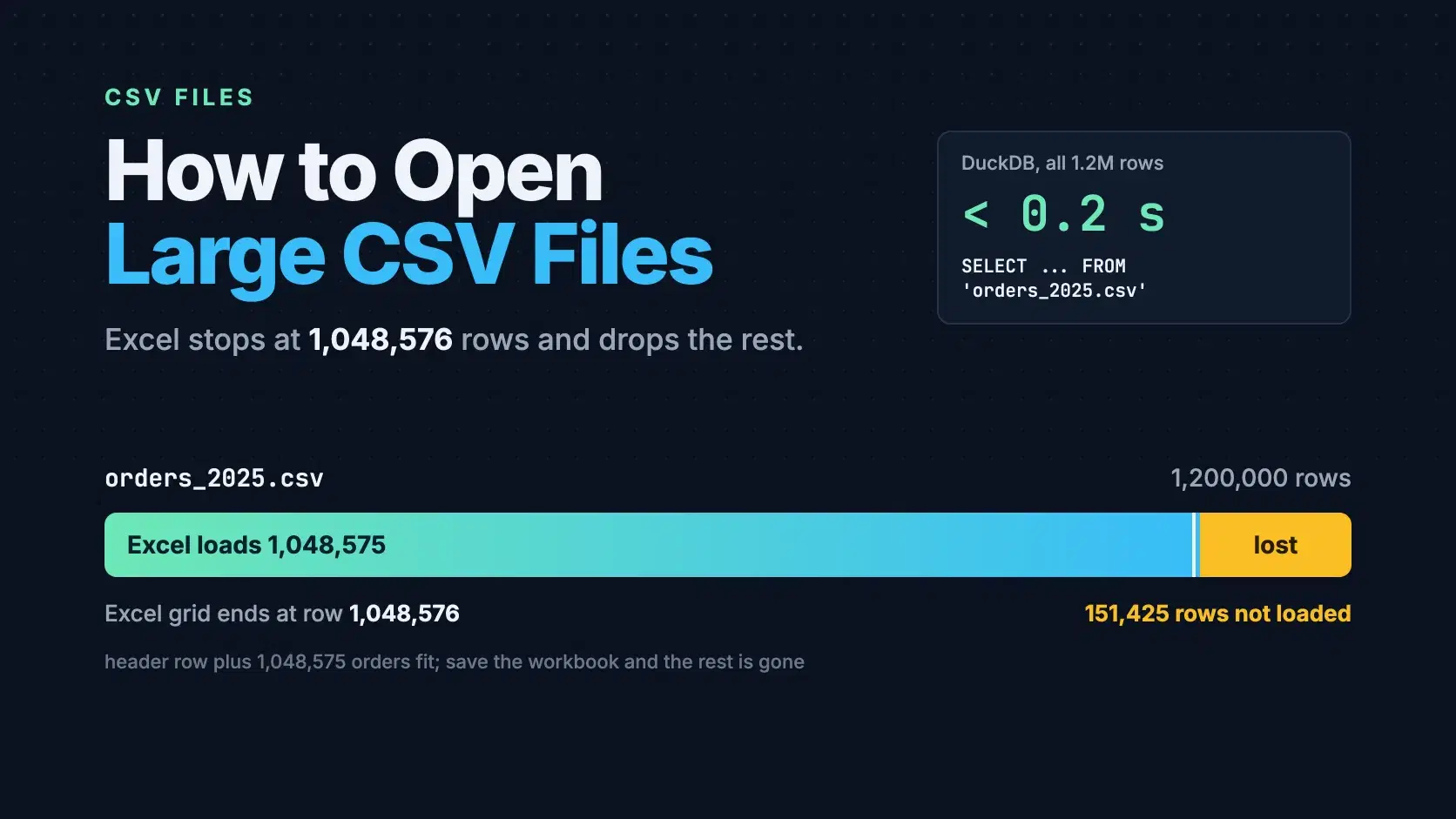
To open a CSV file that is too large for Excel, stop loading it into a spreadsheet grid. Query it where it sits with DuckDB, read it in chunks with pandas, or split it into files under Excel's limit of 1,048,576 rows. If you only need to look at the rows, a browser CSV viewer that pages through them works too.
The trap is that Excel does not refuse a big file. It opens the first 1,048,576 rows, shows a warning, and if you save, the rest of the data is gone. This guide follows one file the whole way: orders_2025.csv, a 1,200,000-row order export with 7 columns that weighs 71 MB. Every output below was produced on October 3, 2026, on an Apple M3 Pro with 18 GB of RAM.
The Fastest Way
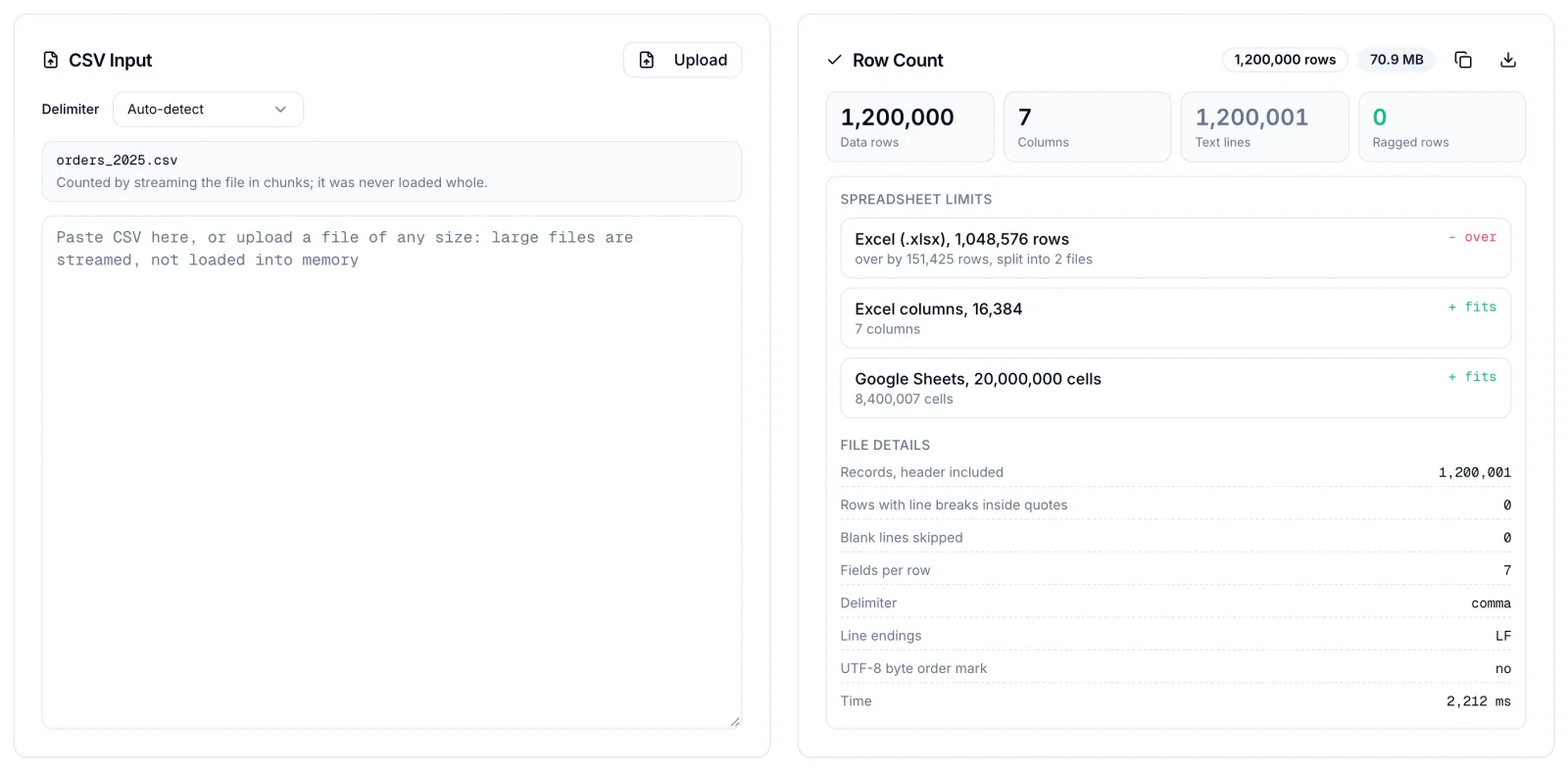
Count the rows before you open anything. The CSV Row Counter streams the file through your browser in chunks, so even a multi-gigabyte export never sits in memory, and it tells you whether the file fits Excel's 1,048,576-row limit and how many files you need to split it into. It counts CSV records rather than newlines, so a quoted address with a line break in it does not inflate the total.
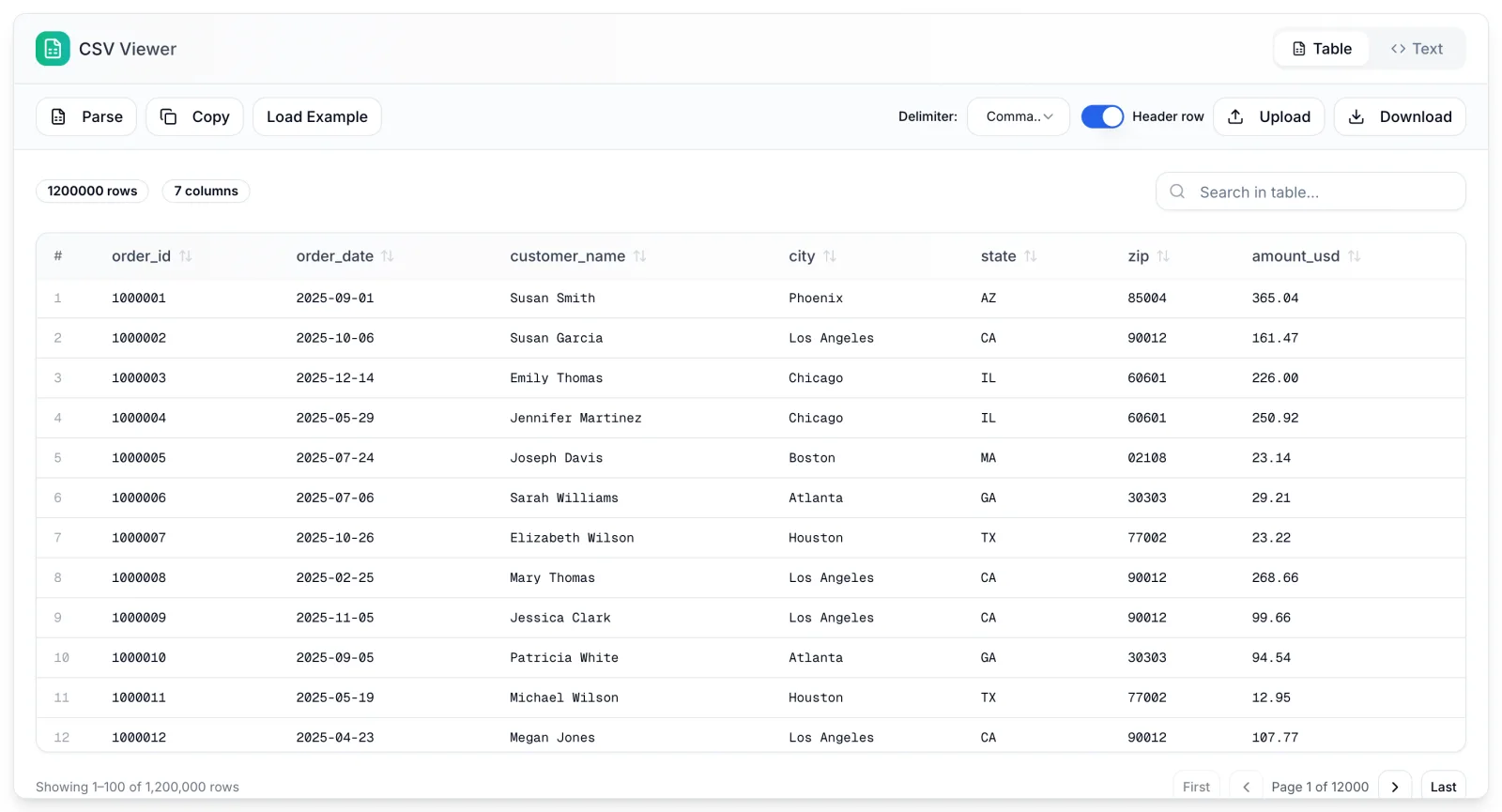
To look at the data, the CSV Viewer loads the file in the tab and pages through it 100 rows at a time, with search, sort and filter across every row. In our test it showed the first page of a 1.2-million-row, 73 MB file in about 7 seconds in Chrome, using roughly 440 MB of tab memory. Nothing is uploaded. That memory cost is the limit: past a few hundred megabytes, use DuckDB.
Check the Size From the Terminal
On macOS and Linux, two commands tell you what you are dealing with:
wc -l orders_2025.csv
head -n 3 orders_2025.csv
text1200001 orders_2025.csv order_id,order_date,customer_name,city,state,zip,amount_usd 1000001,2025-09-01,"Susan Smith",Phoenix,AZ,85004,365.04 1000002,2025-10-06,"Susan Garcia",Los Angeles,CA,90012,161.47
One header plus 1,200,000 orders. Excel would load the header and 1,048,575 orders, then drop the last 151,425. Keep in mind that wc -l counts newline characters, not records, so a file with line breaks inside quoted fields will report more lines than it has rows.
Query the CSV in Place With DuckDB
DuckDB is an in-process SQL database that reads a CSV file directly, with no import step and no server. Version 1.5.6, released September 28, 2026, is MIT licensed and ships as a single binary on its GitHub releases page, or as a Python package with pip install duckdb.
Point a query at the file name:
Bashduckdb -c "SELECT state, count(*) AS orders, round(sum(amount_usd), 2) AS revenue_usd FROM 'orders_2025.csv' GROUP BY state ORDER BY revenue_usd DESC LIMIT 5"
text┌─────────┬────────┬─────────────┐ │ state │ orders │ revenue_usd │ │ varchar │ int64 │ double │ ├─────────┼────────┼─────────────┤ │ NY │ 168025 │ 17516196.8 │ │ TX │ 156144 │ 16308814.9 │ │ CA │ 143691 │ 14880720.49 │ │ IL │ 107928 │ 11265794.74 │ │ GA │ 72201 │ 7527632.02 │ └─────────┴────────┴─────────────┘
Across three runs, that query took between 0.08 and 0.20 seconds over all 1.2 million rows. DuckDB sniffs the delimiter, header and column types on its own, and it does not hold the file in memory. On a 712 MB copy with 12 million rows, the same query finished in 0.37 seconds with a peak of 203 MB of RAM.
DuckDB is also the easiest way to cut a file down to something Excel can take. This writes only the Texas orders to a new CSV:
Bashduckdb -c "COPY (SELECT * FROM 'orders_2025.csv' WHERE state = 'TX') TO 'orders_tx.csv' (HEADER)" wc -l orders_tx.csv
156145 orders_tx.csv
Read It in Chunks With pandas or Polars
If the next step happens in Python, pandas 3.0.6 can stream the file with chunksize instead of loading it whole. Reading only the two columns you need cuts memory further:
Pythonimport pandas as pd totals = pd.Series(dtype="float64") for chunk in pd.read_csv("orders_2025.csv", usecols=["state", "amount_usd"], chunksize=250_000): totals = totals.add(chunk.groupby("state")["amount_usd"].sum(), fill_value=0) print(totals.sort_values(ascending=False).head(3).round(2))
textstate NY 17516196.80 TX 16308814.90 CA 14880720.49 dtype: float64
Be honest with yourself about the size, though. At 71 MB, plain pd.read_csv("orders_2025.csv") loaded everything in 0.42 seconds with a 241 MB peak, so chunking bought nothing. It starts to matter around the size of your RAM. On the 712 MB copy, a full load peaked at 1,466 MB and took 4.14 seconds, while the chunked loop peaked at 171 MB and took 2.85 seconds.
Polars 1.44.2, which is MIT licensed, does the same job lazily: pl.scan_csv("orders_2025.csv") builds a query plan and reads only what the plan needs.
Pythonimport polars as pl top = ( pl.scan_csv("orders_2025.csv") .group_by("state") .agg(pl.len().alias("orders"), pl.col("amount_usd").sum().round(2).alias("revenue_usd")) .sort("revenue_usd", descending=True) .head(3) .collect(engine="streaming") ) print(top)
On the 712 MB copy, Polars finished in 0.22 to 0.26 seconds with its streaming engine, the fastest of the three, but peaked near 890 MB. If memory is the constraint rather than time, DuckDB and chunked pandas used far less.
Split It Into Files Excel Can Open
When the file has to land in Excel, split it into parts under the limit and repeat the header in each one:
Bashtail -n +2 orders_2025.csv | split -l 1000000 - part_ for f in part_*; do { head -n 1 orders_2025.csv; cat "$f"; } > "orders_$f.csv" && rm "$f" done wc -l orders_part_*.csv
text1000001 orders_part_aa.csv 200001 orders_part_ab.csv 1200002 total
split -l cuts on newlines, so it breaks any record that has a line break inside a quoted field. If your export has multi-line notes or addresses, split with DuckDB instead, which parses the CSV properly. Splitting orders_2025.csv at July 1 gave two files of 595,240 and 604,762 lines:
Bashduckdb -c "COPY (SELECT * FROM 'orders_2025.csv' WHERE order_date < DATE '2025-07-01') TO 'orders_h1.csv' (HEADER)"
If you have Excel for Windows, you may not need to split at all. Microsoft's guide to data sets that are too large for the Excel grid loads the whole file through Power Query: Data, From Text/CSV, then Load To and PivotTable Report. The grid still shows no more than 1,048,576 rows, but the PivotTable summarizes every row. Microsoft documents this for the Windows app; I did not test it.
Google Sheets is not much roomier. Its published cap is 20 million cells or 100 MB per spreadsheet. orders_2025.csv is 8.4 million cells, so on paper it fits, but a file with 30 columns would not.
Common Errors
"This data set is too large for the Excel grid. If you save this workbook, you'll lose data that wasn't loaded." Excel stopped at row 1,048,576. Close the workbook without saving, then use one of the methods above. If you must keep what loaded, Microsoft's advice is File, Save a Copy, under a name that says the copy is truncated.
pandas.errors.ParserError: Error tokenizing data. C error: Expected 7 fields in line 4, saw 8 A row has more delimiters than the header, almost always an unquoted comma such as Robert Lee, Jr.. DuckDB reports the same problem as CSV Error on Line: 500001 ... Expected Number of Columns: 7 Found: 8. To skip such rows while keeping a record of them, read with read_csv('orders.csv', store_rejects = true) and then SELECT * FROM reject_errors, which listed the bad line, its number and TOO MANY COLUMNS. In pandas, on_bad_lines="skip" drops them silently, so count them first. The CSV Row Counter lists the record numbers of rows whose field count does not match the header.
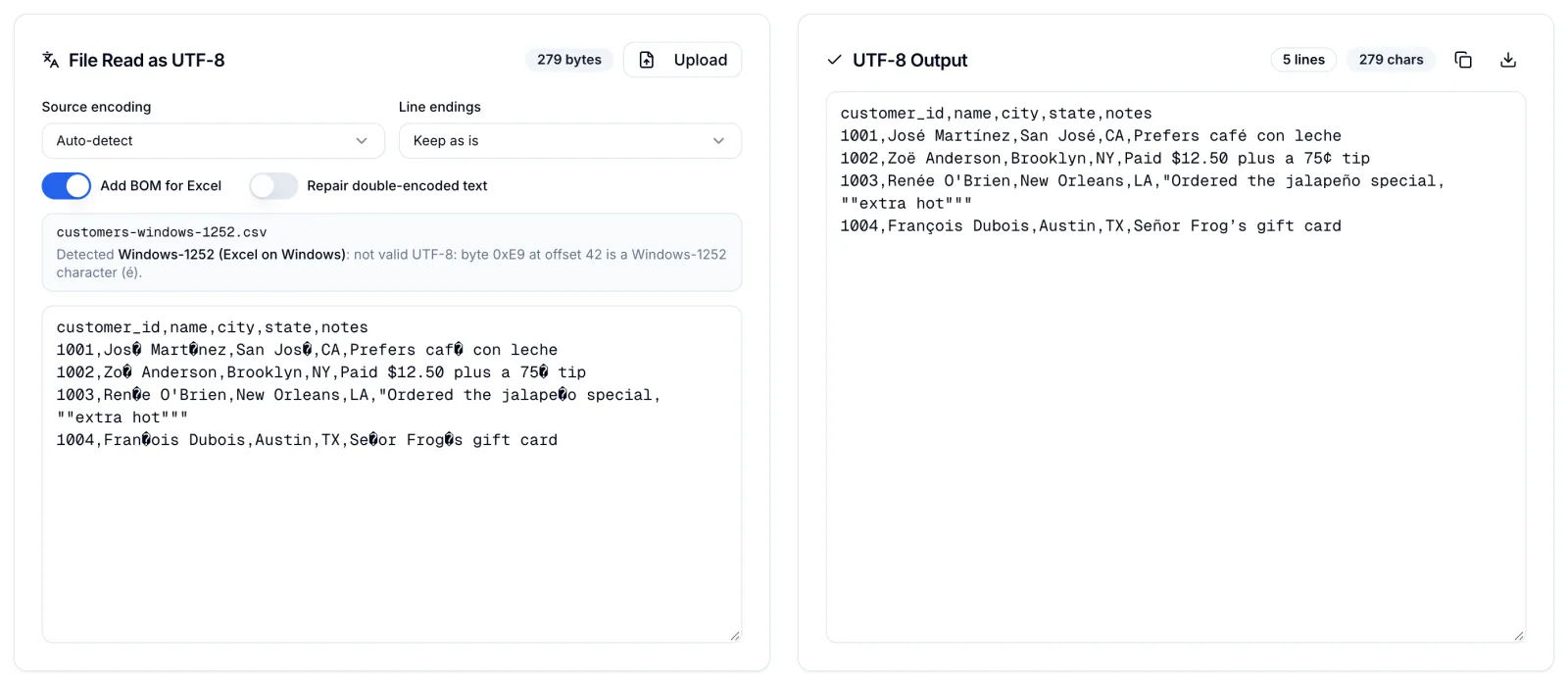
UnicodeDecodeError: 'utf-8' codec can't decode byte 0xe9 in position 39: invalid continuation byte The file is Windows-1252, the encoding Excel on Windows uses when it saves a plain CSV, and 0xe9 is an é. DuckDB says Invalid unicode (byte sequence mismatch) detected. This file is not utf-8 encoded. Pass encoding="cp1252" to pandas, or convert the file once with the CSV to UTF-8 Converter so every tool downstream reads it.
ZIP codes lose their leading zero. pandas inferred the zip column as int64 and turned Boston's 02108 into 2108. Read it as text with dtype={"zip": "string"}. DuckDB kept it as VARCHAR here because its sniffer saw the leading zeros, but set types = {'zip': 'VARCHAR'} when it matters.
When Not to Do This
If you query the same export every week, stop reopening the CSV. Convert it once to Parquet, a compressed columnar format that DuckDB, pandas and Polars all read:
Bashduckdb -c "COPY (SELECT * FROM 'orders_2025.csv') TO 'orders_2025.parquet' (FORMAT parquet)"
The 71 MB CSV became a 15.3 MB Parquet file in 0.35 seconds, and the state query dropped from about 0.1 seconds to 0.02. And if the file holds customer data, be careful which online viewer you hand it to. Check that it runs in the browser rather than posting the file to a server.
Conclusion
Just need to see the rows: count them with the CSV Row Counter, then page through them in the CSV Viewer if the file is under a few hundred megabytes. Need an answer from the data: use DuckDB, which answered every question here in under half a second without loading the file. Already working in Python: pd.read_csv(..., chunksize=...) once the file approaches your RAM, or Polars for speed. Someone needs it in Excel: split with DuckDB COPY so quoted line breaks survive, or use Power Query on Windows. And whatever you do, do not save the truncated workbook.
Related DevToolLab Tools
- CSV Row Counter - count records in a file of any size without loading it, and see how many Excel-sized files it needs.
- CSV Viewer - page, search and sort through a million-row export in a browser tab, with nothing uploaded.
- CSV to UTF-8 Converter - fix the Windows-1252 export behind
UnicodeDecodeErrorbefore pandas or DuckDB reads it. - CSV Splitter - cut an export of a few megabytes into fixed-size chunks for an import form; for a file the size of
orders_2025.csv, usesplitor DuckDB above.
Related Guides
- Best Synthetic Data Generation Tools - generate a realistic million-row CSV to test these methods before a real export arrives.
- SQL Formatting Best Practices - keep the DuckDB queries you save for recurring exports readable.
- uv in 2026: The Python Tool That Replaced pip - set up an environment for pandas, Polars and DuckDB in seconds.
- Developer Tools Pricing Index - a downloadable CSV dataset to practice these queries on.