
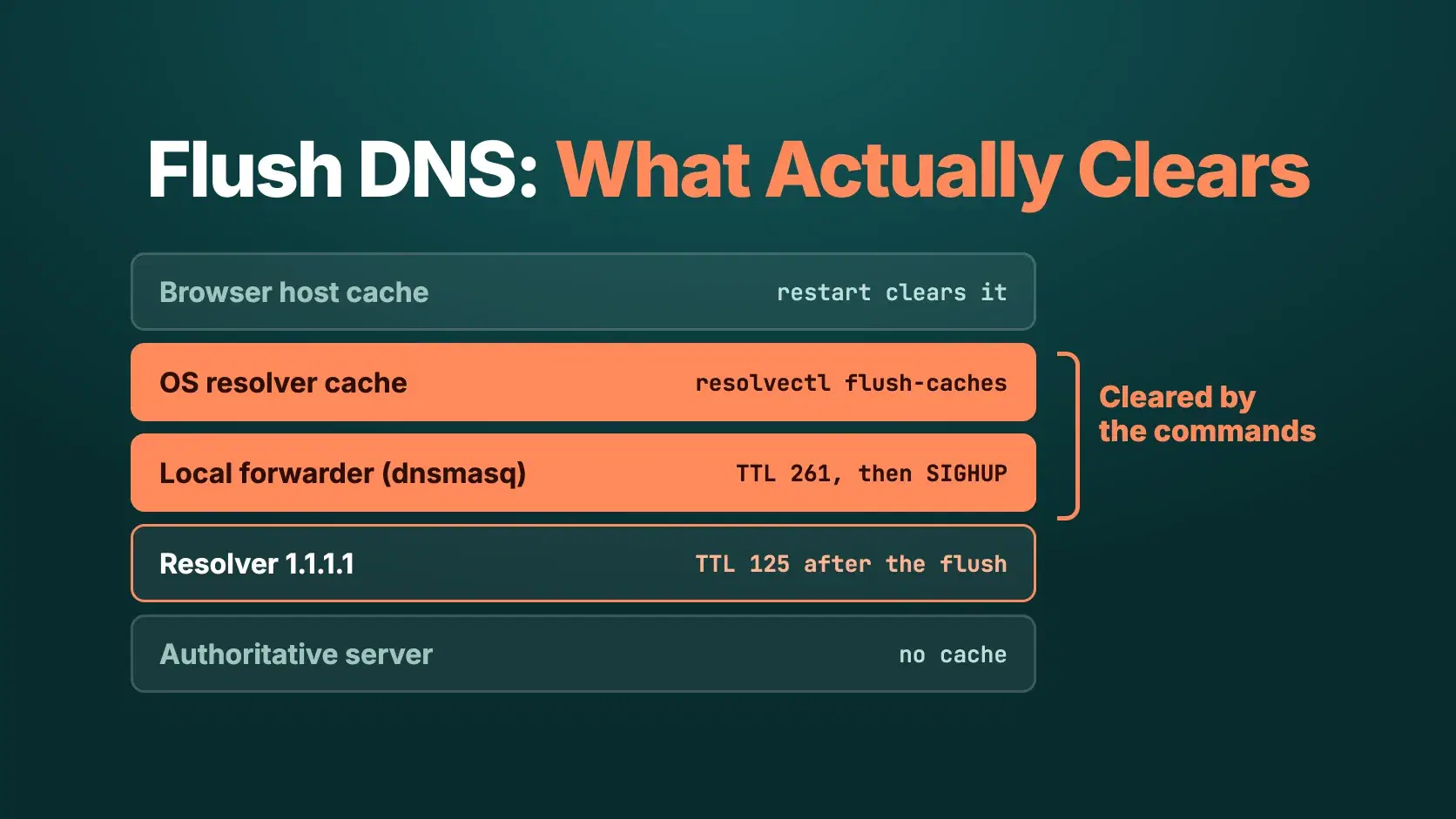
To flush DNS, run ipconfig /flushdns on Windows, sudo dscacheutil -flushcache; sudo killall -HUP mDNSResponder on macOS, and resolvectl flush-caches on Linux systems that use systemd-resolved. Each command empties the cache on your own machine only, so the next lookup asks a resolver again instead of reusing an old answer.
That last part is the trap. A name gets cached in several places between your browser and the authoritative server, and flushing the OS cache clears just one of them. If you changed a record and still land on the old server, the stale copy is often somewhere your laptop's command cannot reach.
The Fastest Way
Before you flush anything, check what the rest of the internet sees. Enter the name in the DNS Lookup tool and read the record and its TTL. If it already shows the new address, your local cache is the problem and the commands below will fix it. If it still shows the old one, no flush on your machine helps, and the DNS Propagation Checker will show you which public resolvers are still serving the old value.
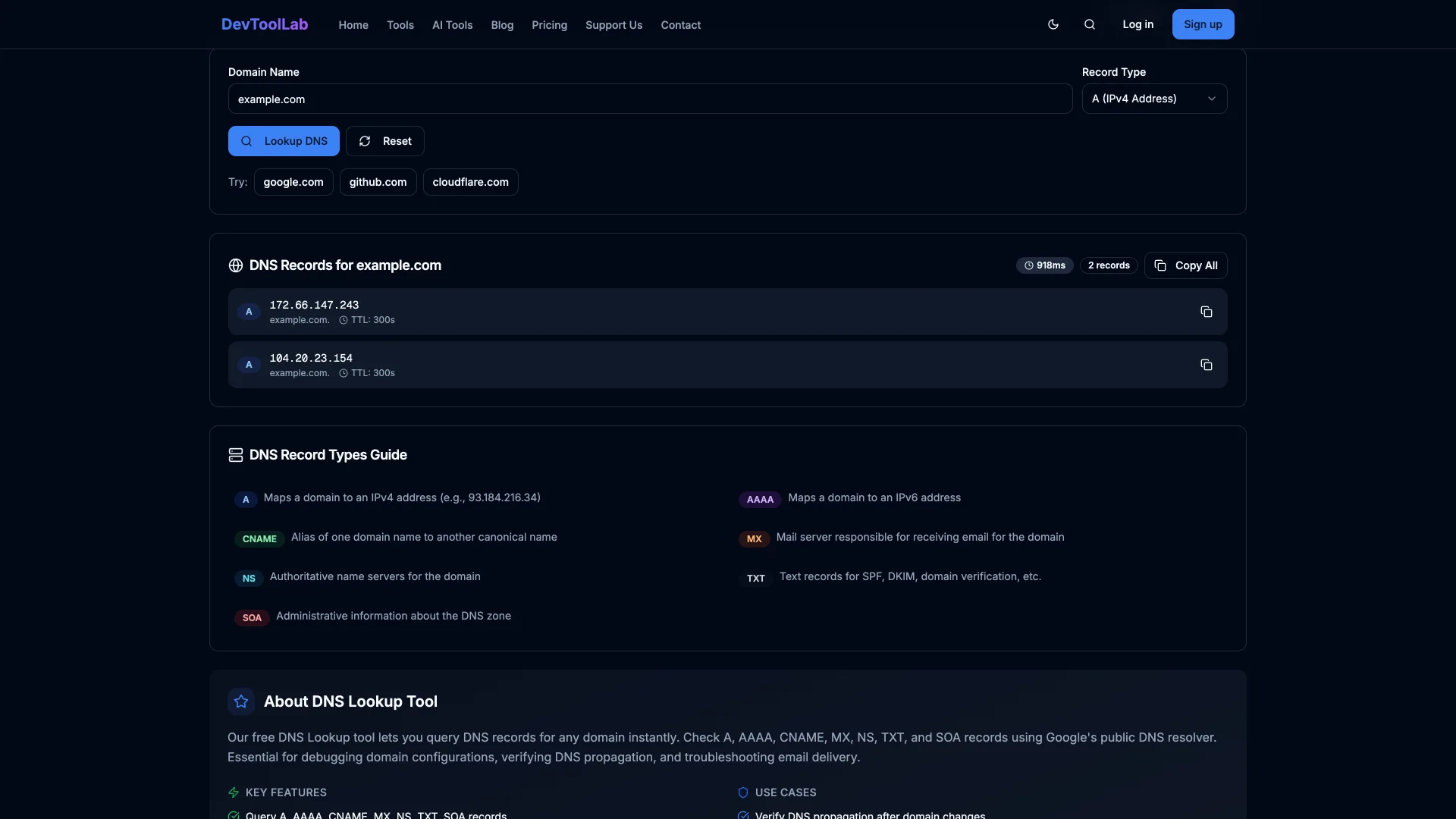
The lookup tool asks Google Public DNS, so the answer and TTL it shows are what 8.8.8.8 has cached right now. The tools look up records only. They don't touch your machine's cache, so the commands below are still how you clear that.
Which Cache Are You Flushing?
One worked example runs through this post. You moved api.example.com from 203.0.113.10 to 203.0.113.20, the record's TTL was 3600 seconds, and your browser still hits the old box.
A lookup passes through up to five caches in order: the browser's own host cache, the operating system's resolver cache, a forwarder on your router or a local daemon such as dnsmasq, the recursive resolver you are configured to use (your ISP, 1.1.1.1, 8.8.8.8), and finally the authoritative server, which has no cache because it holds the zone. Every layer keeps an answer for at most the TTL the authoritative server published, counting down from when that layer first fetched it. With a 3600-second TTL, a resolver that fetched the old record five minutes before your change can keep serving it for another 55 minutes.
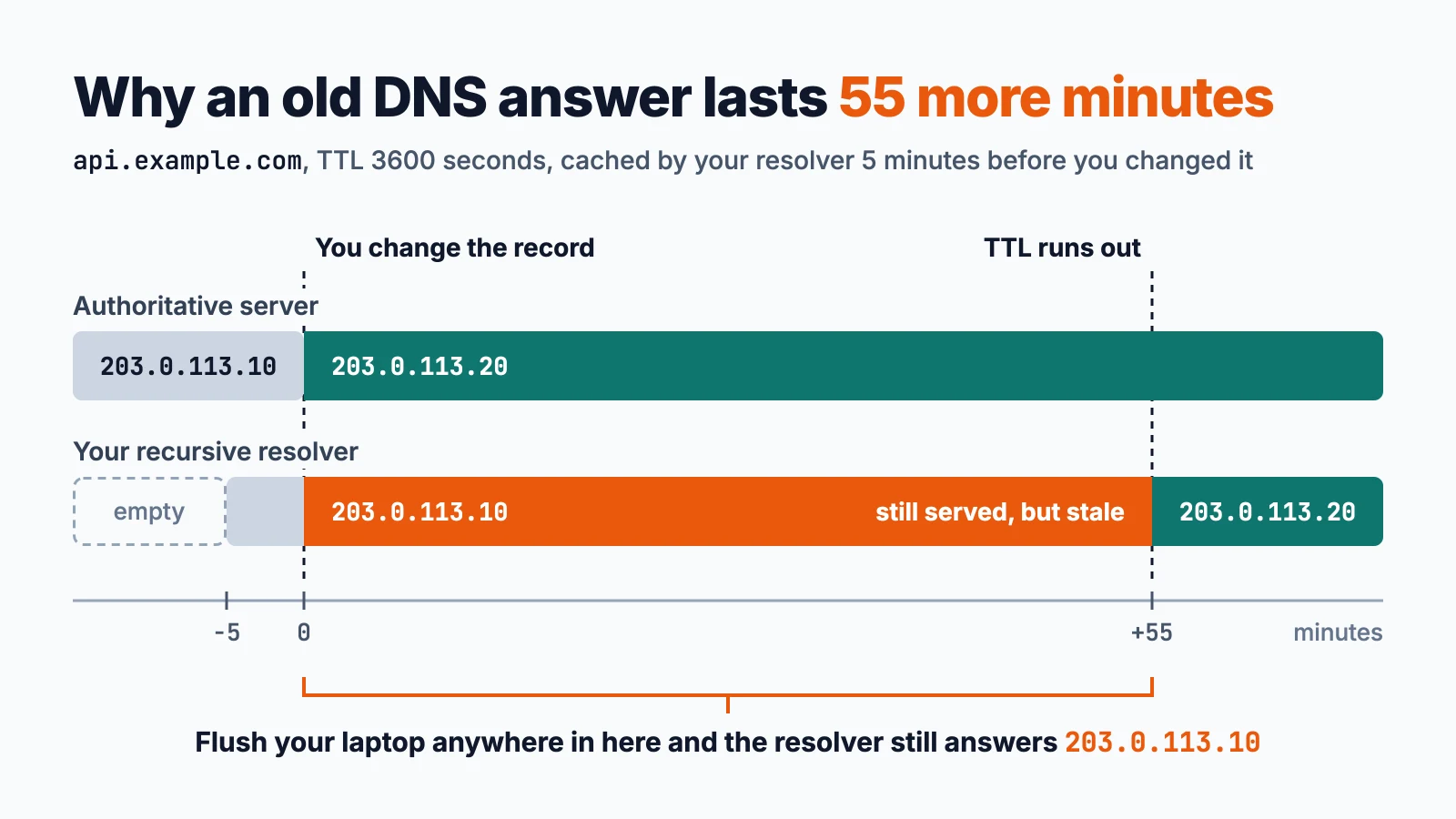
Minutes are counted from the moment you change the record. The 55-minute window is the 3600-second TTL minus the 5 minutes the resolver had already held the old answer.
The commands in the next three sections clear the second layer and, where noted, the third. The fourth is covered in its own section after them.
Flush DNS on macOS
macOS answers lookups through mDNSResponder, which also caches the replies (its man page describes it as maintaining "a cache of the replies"). The usual two-step is:
Bashsudo dscacheutil -flushcache sudo killall -HUP mDNSResponder
I ran this on macOS 26.6.2 (Tahoe), where pgrep -l mDNSResponder shows the daemon running. dscacheutil -flushcache returned exit code 0. I did not run the killall line, because it needs a sudo password and this session had none, so treat that line as the commonly documented command rather than one I confirmed here.
To see which resolvers macOS is actually using before you flush, run scutil --dns. It lists each resolver with its nameserver and the interface it belongs to. A VPN often adds its own "Supplemental" resolver, which is why a name can resolve differently with the VPN on.
Flush DNS on Windows
Open a terminal as administrator and run:
ipconfig /flushdns
Microsoft's ipconfig reference says /flushdns "flushes and resets the contents of the DNS client resolver cache" and that you can use it "to discard negative cache entries from the cache, as well as any other entries that have been added dynamically." The negative entries matter: a lookup that failed a minute ago can stay cached as a failure, so a record you just created keeps looking missing until you flush.
Run ipconfig /displaydns first to read the cache. Per the same page it lists entries preloaded from the Hosts file and recently resolved names, which makes it a quick way to confirm your name is the one being served stale. I did not run either Windows command, since I have no Windows machine here; the quotes come from Microsoft's page, fetched November 6, 2026.
Flush DNS on Linux
Linux has no single DNS cache. Which command works depends on what, if anything, is caching on that box.
On Ubuntu and other systemd distributions that run systemd-resolved:
resolvectl flush-caches
The resolvectl man page says this "flushes all DNS resource record caches the service maintains locally," is "mostly equivalent to sending the SIGUSR2 to the systemd-resolved service," and was added in version 239. I could not run it, since my test container has no systemd.
If you run dnsmasq as a local forwarder, a SIGHUP clears its cache. I tested this in an Ubuntu 24.04 container with dnsmasq 2.91 forwarding to 1.1.1.1, with query logging on:
text-- q1 example.com. 265 IN A 104.20.23.154 -- q2 (4s later, cached) example.com. 261 IN A 104.20.23.154 -- q3 after SIGHUP example.com. 125 IN A 104.20.23.154
The dnsmasq log shows forwarded example.com to 1.1.1.1 for the first query, cached example.com for the second, and forwarded again after the HUP. The TTL counting down from 265 to 261 is the cache doing its job, and the third lookup went back upstream, so the flush worked.
I also tried nscd -i hosts for the name service cache daemon. The daemon exited with status 1 in the container, so I can't confirm that one. Most desktop installs don't run nscd at all.
Flush the Resolver Above You
Look again at that third answer: the TTL is 125, lower than the 265 the same container saw on its first query. The local flush emptied dnsmasq, but 1.1.1.1 had already cached the record and kept its own countdown, so it handed back a smaller number instead of a fresh one. Flushing locally just asked the same upstream resolver again and got the same stale-but-valid answer.
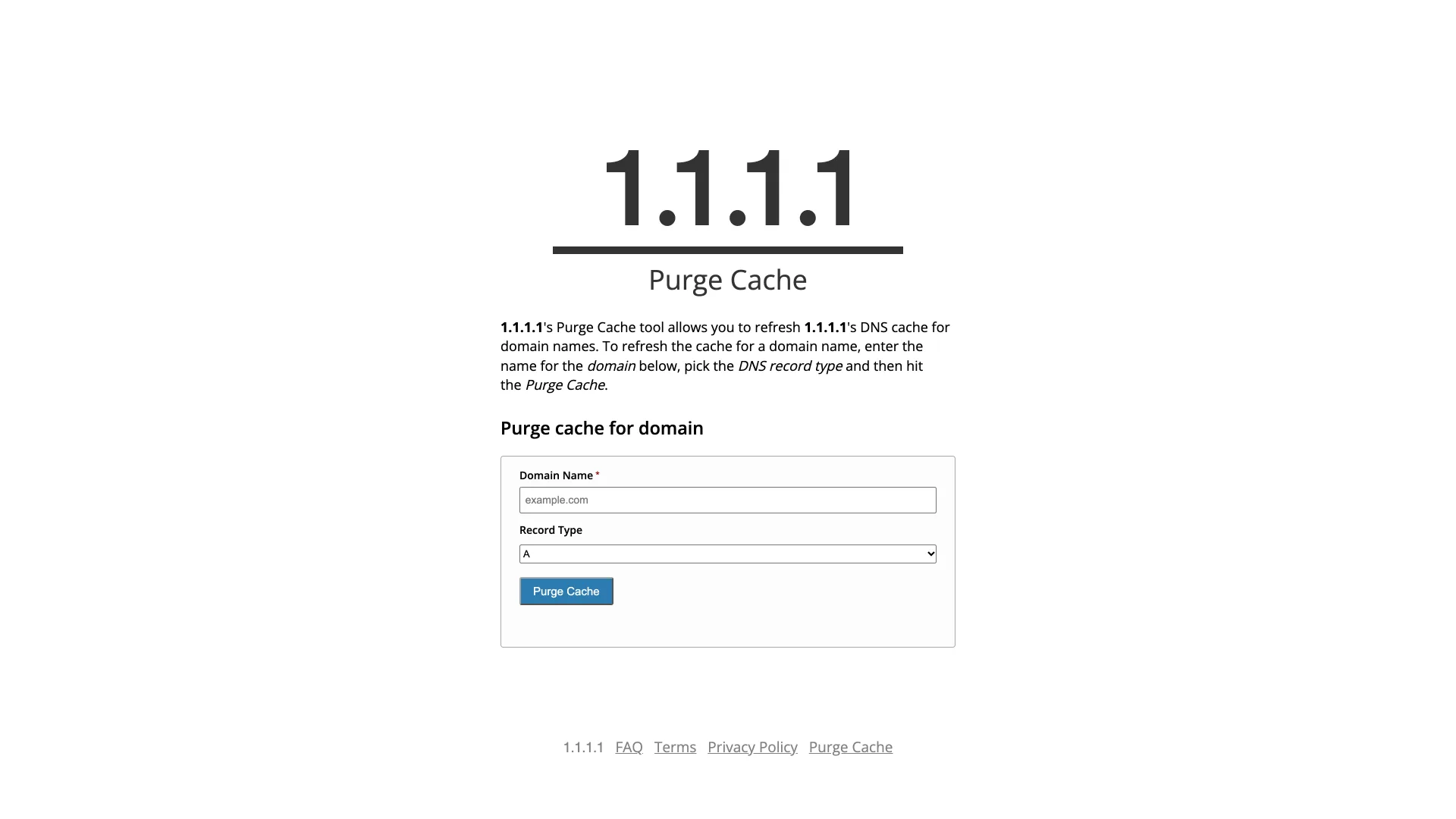
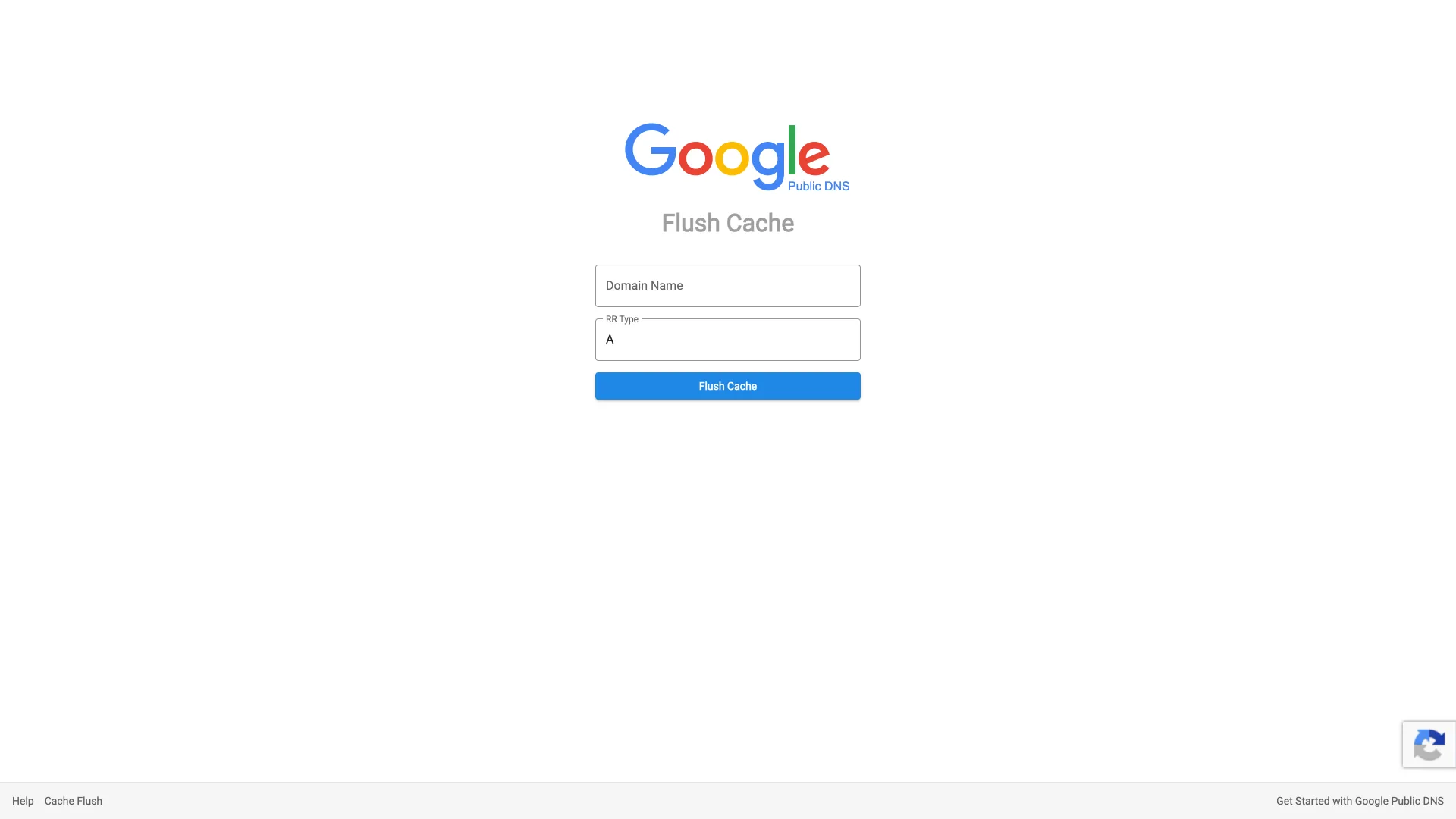
This is the case for your moved api.example.com. Two public resolvers let you clear their copy yourself. Cloudflare's Purge Cache tool refreshes 1.1.1.1's cache for a domain and record type, and Google Public DNS has a Flush Cache page that takes a domain name and an RR type. If your resolver is your ISP's or a corporate one, you can't flush it; the only fix is to wait out the TTL or point the machine at a public resolver for the test.
Browsers keep a host cache of their own too. Chrome exposes one at chrome://net-internals/#dns with a clear button, but my headless Chrome 157 would not render that page, so I can't confirm the current layout. Quitting and reopening the browser should empty it too, though I did not test that.
Common Errors
DNS_PROBE_FINISHED_NXDOMAIN right after you created a record. The resolver cached the "does not exist" answer from before you created it. Flush your machine, then purge the upstream resolver if it still fails, and try the lookup tool to confirm the record is live.
ERR_NAME_NOT_RESOLVED on one device but not another. The two devices use different resolvers or hold different cached answers. Compare scutil --dns or ipconfig /all on each, then flush the one that fails.
sudo: a password is required in a script. The macOS flush needs root. Run it interactively, or add a narrow sudoers rule, rather than putting a password in the script.
When Not to Flush
A flush cannot fix a wrong record. If the authoritative server still returns the old address, you will fetch the old adress again no matter how many times you clear caches. Check the record first. Also check the hosts file (/etc/hosts, or C:\Windows\System32\drivers\etc\hosts), because a pinned entry there beats DNS entirely and survives every flush.
Don't flush on a timer as a "fix" either. It throws away answers that were correct, so every name costs a fresh lookup until the cache refills, and teh page loads feel slower in the meantime.
Conclusion
Flushing DNS clears one cache, the one on your machine. Before you run anything, look the name up in DNS Lookup. If it already returns the new address, ipconfig /flushdns, sudo dscacheutil -flushcache; sudo killall -HUP mDNSResponder or resolvectl flush-caches is the whole fix. If it still returns the old one, either the record never changed or a resolver above you still has it cached. Check the record, then purge that resolver on Cloudflare's or Google's flush page, or wait out the TTL: in the api.example.com example, at most 55 more minutes.
For the next planned move, lower the record's TTL to 300 seconds at least an hour before the change, one full run of the old 3600-second TTL, so every cache has picked up the short value. A resolver you can't flush then serves the old address for five minutes instead of an hour.
Related DevToolLab Tools
- DNS Lookup - read the live record and its TTL, so you know whether the stale answer is local or upstream.
- DNS Propagation Checker - see which public resolvers still serve the old value after you change a record.
- Ping Test - confirm which address a name resolves to and whether the host answers at all.
- Port Checker - once the name points at the right server, check the service port is open.
Related Guides
- Best DNS for Gaming - picking a resolver, which also decides whose cache you are stuck behind.
- How to Check an SSL Certificate - the next thing to verify after a record moves to a new host.
- How to Read DMARC Reports - another case where a DNS record change takes time to show up everywhere.