
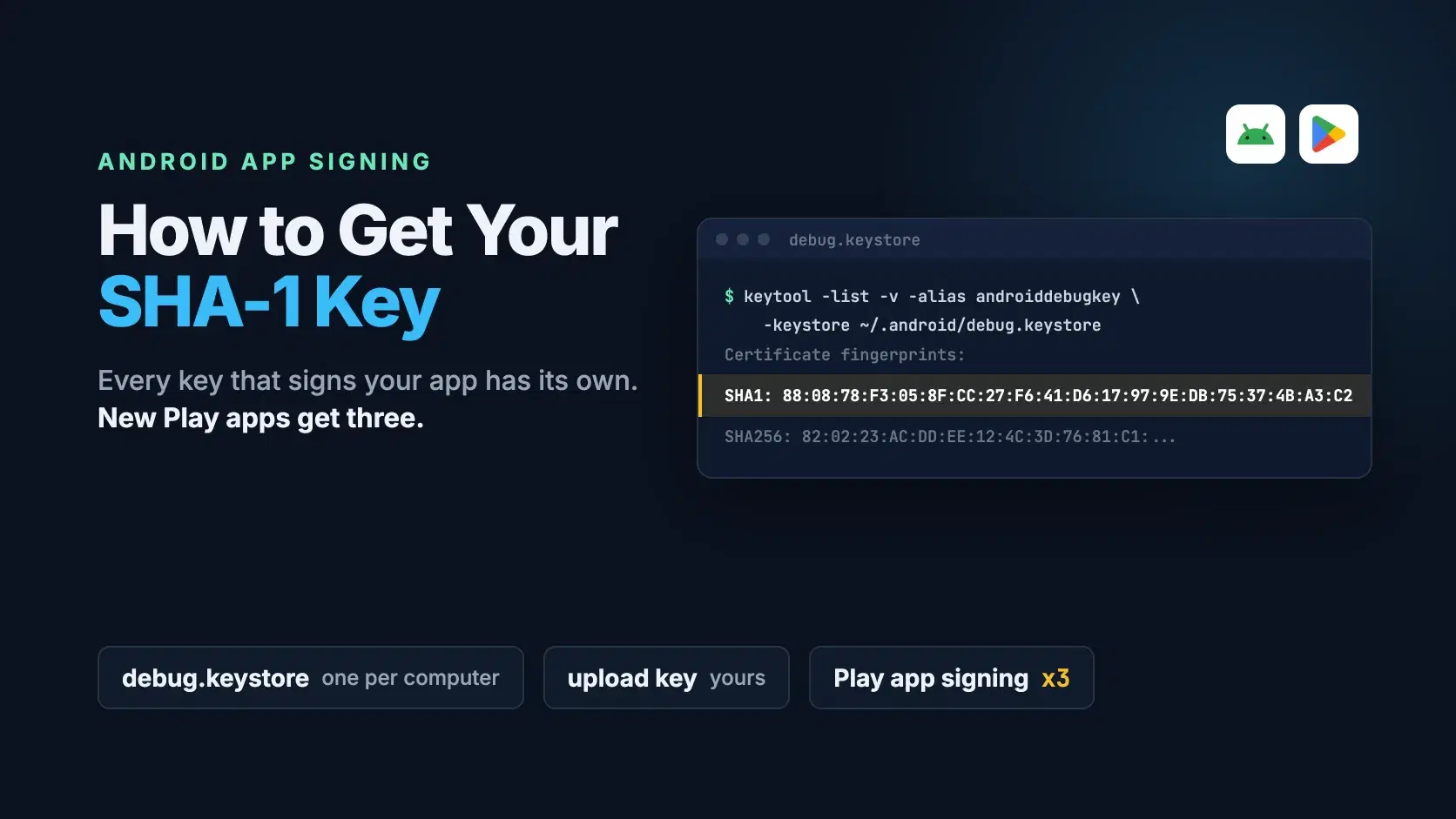
For a debug build, run keytool -list -v -alias androiddebugkey -keystore ~/.android/debug.keystore, enter the password android, and copy the line that starts with SHA1:. For a release build, run the same command on your upload keystore or run ./gradlew signingReport. If Google Play signs your app, copy the SHA-1 from Play Console instead.
The catch is that an Android app rarely has one SHA-1. Every key that signs a copy has its own certificate, and Firebase Authentication, Sign in with Google and the Google Maps SDK check the copy actually installed. A fingerprint that works from Android Studio can fail for everyone who installs from the Play Store, and since 2026 Google Play gives new apps three app signing keys instead of one.
The examples follow one app: Trailhead, a hiking app (com.trailhead.android) from Denver that signs users in with Google through Firebase and ships on Google Play.
The Fastest Way
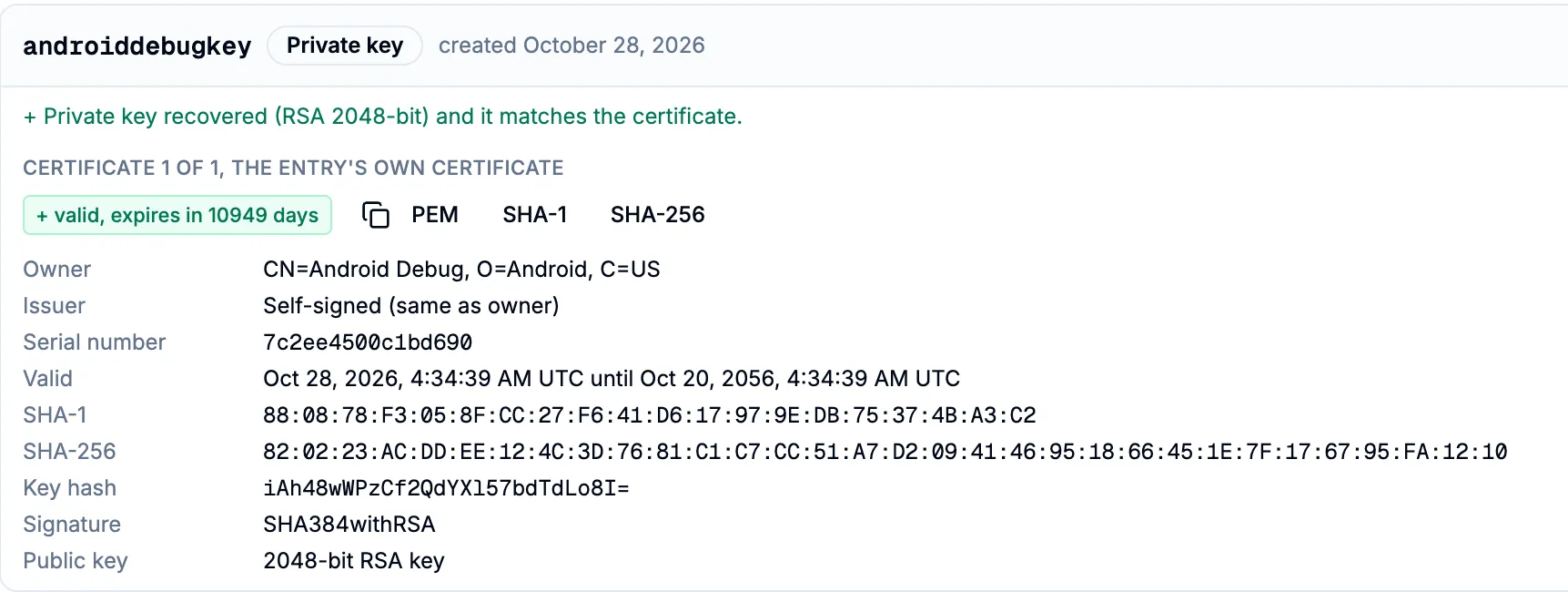
Drop the keystore into the JKS Viewer and type its password. It lists every alias with its SHA-1 and SHA-256 fingerprints and the base64 key hash Meta's Android SDK asks for, reads JKS and PKCS12 keystores, and runs in your browser with no JDK installed. It cannot show the key Google Play signs with, because Google never hands that key out; that one comes from Play Console, below.
Which Key Signed the Copy You Are Testing
| Copy of the app | Signed with | Where to get the SHA-1 | Register it? |
|---|---|---|---|
| Debug build from Android Studio | ~/.android/debug.keystore, one per computer | keytool or signingReport | Yes, for every developer machine |
| App bundle you upload to Play | Your upload key | keytool on the upload keystore | Only for builds you install yourself |
| App installed from Google Play | Google's app signing key, up to three on new apps | Play Console | Yes, every fingerprint listed |
| Release APK you sign yourself, without Play App Signing | Your release key | keytool or signingReport | Yes |
Google's Authenticating Your Client page, last updated October 27, 2026, puts it plainly: "When using Play App Signing, the upload key certificate will be different than the app signing key certificate." That sentence explains most "works in debug, fails in production" sign-in bugs.
How to Get the Debug SHA-1 With keytool
keytool ships with every JDK, and Android Studio bundles one: the JetBrains Runtime, in a jbr folder inside the install directory, per Android's JDK documentation. Android Studio creates $HOME/.android/debug.keystore the first time you run a project, and Google gives android as its password. On macOS and Linux:
Bashkeytool -list -v -alias androiddebugkey -keystore ~/.android/debug.keystore -storepass android -keypass android
On Windows the path is %USERPROFILE%\.android\debug.keystore. Real output from a stand-in debug keystore made with JDK 24's keytool on October 28, 2026, same alias and password:
textAlias name: androiddebugkey Creation date: Oct 27, 2026 Entry type: PrivateKeyEntry Certificate chain length: 1 Certificate[1]: Owner: CN=Android Debug, O=Android, C=US Issuer: CN=Android Debug, O=Android, C=US Serial number: 7c2ee4500c1bd690 Valid from: Tue Oct 27 22:34:39 MDT 2026 until: Thu Oct 19 22:34:39 MDT 2056 Certificate fingerprints: SHA1: 88:08:78:F3:05:8F:CC:27:F6:41:D6:17:97:9E:DB:75:37:4B:A3:C2 SHA256: 82:02:23:AC:DD:EE:12:4C:3D:76:81:C1:C7:CC:51:A7:D2:09:41:46:95:18:66:45:1E:7F:17:67:95:FA:12:10 Signature algorithm name: SHA384withRSA Subject Public Key Algorithm: 2048-bit RSA key
The SHA1 line is what Firebase wants: in the Firebase console, open Settings, General, pick the Android app under Your apps and paste it into SHA certificate fingerprints. Android's docs say the debug certificate expires 30 years after creation; deleting debug.keystore makes Android Studio create a new one, with a new SHA-1 to register.
Meta's key hash is the same 20 bytes in base64. Its Facebook Login docs pipe keytool into OpenSSL, and the result decodes back to 88:08:78:F3...:
Bash$ keytool -exportcert -alias androiddebugkey -keystore ~/.android/debug.keystore -storepass android | openssl sha1 -binary | openssl base64 iAh48wWPzCf2QdYXl57bdTdLo8I=
How to Get It With Gradle's signingReport
Gradle prints the key for every build variant at once: ./gradlew signingReport on macOS or Linux, gradlew signingReport on Windows. In a Flutter or React Native project the Gradle project lives in android, so cd android first. In Android Studio, open the Gradle tool window and run app, Tasks, android, signingReport.
Each variant gets Variant, Store, Alias, SHA1 and SHA-256 lines. The Store line also tells you where a debug keystore lives when it is not in the default spot, which Android's app signing guide points to for exactly that. I did not run Gradle for this post (no Android SDK on teh test machine); the command and fields come from Google's docs dated October 27, 2026.
How to Get the Play App Signing SHA-1, Now Up to Three Keys
With Play App Signing, Google signs every copy users install, and the upload key on your laptop never reaches a phone. In Play Console, select the app, open Protected with Play, Play Store protection, Manage Play app signing, and scroll to App signing key. That path is from Google's Use Play App Signing help page, checked October 28, 2026; the client-auth page still gives the older Release, Setup, App Integrity path to the same screen.
New apps get more than one key there. Google Play enrolls new apps automatically in quantum-ready hybrid signing, which pairs a classical RSA 4096-bit key with a post-quantum ML-DSA-65 key and keeps a separate classical key for devices on Android 16 or lower: three app signing keys. Android 17 (API level 37) verifies the hybrid block, APK Signature Scheme v3.2, and treats the ML-DSA key as the app's current signing identity, while Android 16 and lower skip that block and check the classical signature, according to the AOSP v3.2 documentation. The same app presents a different certificate depending on the phone's Android version, so the Play help page says to register all three fingerprints with every API provider.
Google announced this in its Security Blog on March 25, 2026, adding that Play will prompt developers to upgrade signing keys at least every two years, so the list will grow. One open-source app recorded the failure mode on October 1, 2026: after its Play signing moved to the quantum-ready key, installs signed with the previous key failed Google sign-in with DEVELOPER_ERROR until that key's SHA-1 got its own Android OAuth client. For Trailhead: register the debug fingerprint from every developer machine and every fingerprint Play Console lists, and keep an old one registered after a key upgrade while users still run builds signed with it.
How to Get the SHA-1 of an APK or AAB
Google's docs give keytool -printcert -jarfile app.aab for a bundle and the same for an APK. keytool only reads the older JAR (v1) signature, though, and an APK signed only with scheme v2 or v3 has none, so keytool answers Not a signed jar file. For APKs, use apksigner verify --print-certs app.apk from the SDK build tools, per Android's apksigner reference, or the APK Analyzer, which reads the v1 signature and the v2, v3 and v3.1 signing block in your browser.
The most reliable check is the copy Play delivered: adb shell pm path com.trailhead.android, adb pull that path, then read its certificate. That is the fingerprint your API console has to recieve. I did not run apksigner or adb for this post.
Common Errors
'keytool' is not recognized as an internal or external command (PowerShell: "The term 'keytool' is not recognized"). keytool is not on your PATH. Call Android Studio's copy, which on a default Windows install is "C:\Program Files\Android\Android Studio\jbr\bin\keytool.exe".
keytool error: java.io.IOException: keystore password was incorrect is JDK 24's wrong-password message for a PKCS12 keystore; a JKS keystore says Keystore was tampered with, or password was incorrect. The debug password is android; an upload key's is whatever was set at creation, often in a keystore.properties file.
keytool error: java.lang.Exception: Alias <upload> does not exist means the keystore holds a differently named key. Drop -alias and run keytool -list -keystore <file> to print every alias first.
keytool error: java.lang.Exception: Keystore file does not exist for the debug path means no debug build has run here yet, or the project uses a custom keystore. Run one debug build, or read the Store line from signingReport.
DEVELOPER_ERROR, status code 10, from Google sign-in. Google Play services defines it as "The application is misconfigured." The package name and the installed copy's SHA-1 match no Android OAuth client. If sign-in works from Android Studio but not from the Play Store, the Play app signing fingerprints are missing.
A Meta key hash that never matches. keytool writes its error messages to standard output, so a mistyped password in the OpenSSL pipe hashes the sentence "keytool error: java.io.IOException: keystore password was incorrect" and returns a valid-looking 28-character value: VzSiQcXRmi2kyjzcA+mYLEtbGVs= with JDK 24. If you get 2jmj7l5rSw0yVb/vlWAYkK/YBwk=, keytool never ran: that is the SHA-1 of empty input, the same DA:39:A3:EE:5E:6B:4B:0D:... value Google's client-auth page uses as its example fingerprint. Run keytool alone first and compare with the SHA1 line.
When Not to Do This
A SHA-1 fingerprint is a hash of the public certificate, so it is safe to paste into Firebase, Google Cloud or a support ticket. The keystore and its password are not: anyone holding Trailhead's upload key and password can sign bundles Play accepts as yours. Never commit a keystore to Git. The JKS Viewer decrypts in the browser and uploads nothing, but keytool on your own machine is the better habit for a release key. A leaked or lost upload key can be reset from Play Console with a new upload_certificate.pem; an app signing key you manage yourself cannot.
Related DevToolLab Tools
- JKS Viewer - read the SHA-1, SHA-256 and Meta key hash for every alias in a debug or upload keystore, JKS or PKCS12, without installing a JDK.
- APK Analyzer - check which certificate signed an APK, including v2 and v3 signatures that
keytool -printcertcannot see. - Certificate Decoder - paste a PEM certificate, such as the
upload_certificate.pemthat Play's upload key reset asks for, and read its SHA-1 fingerprint and expiry date. - PFX to PEM Converter - split a PKCS12 keystore, keytool's default format since Java 9, into a PEM certificate and key; give it a .p12 name or paste it as base64.