
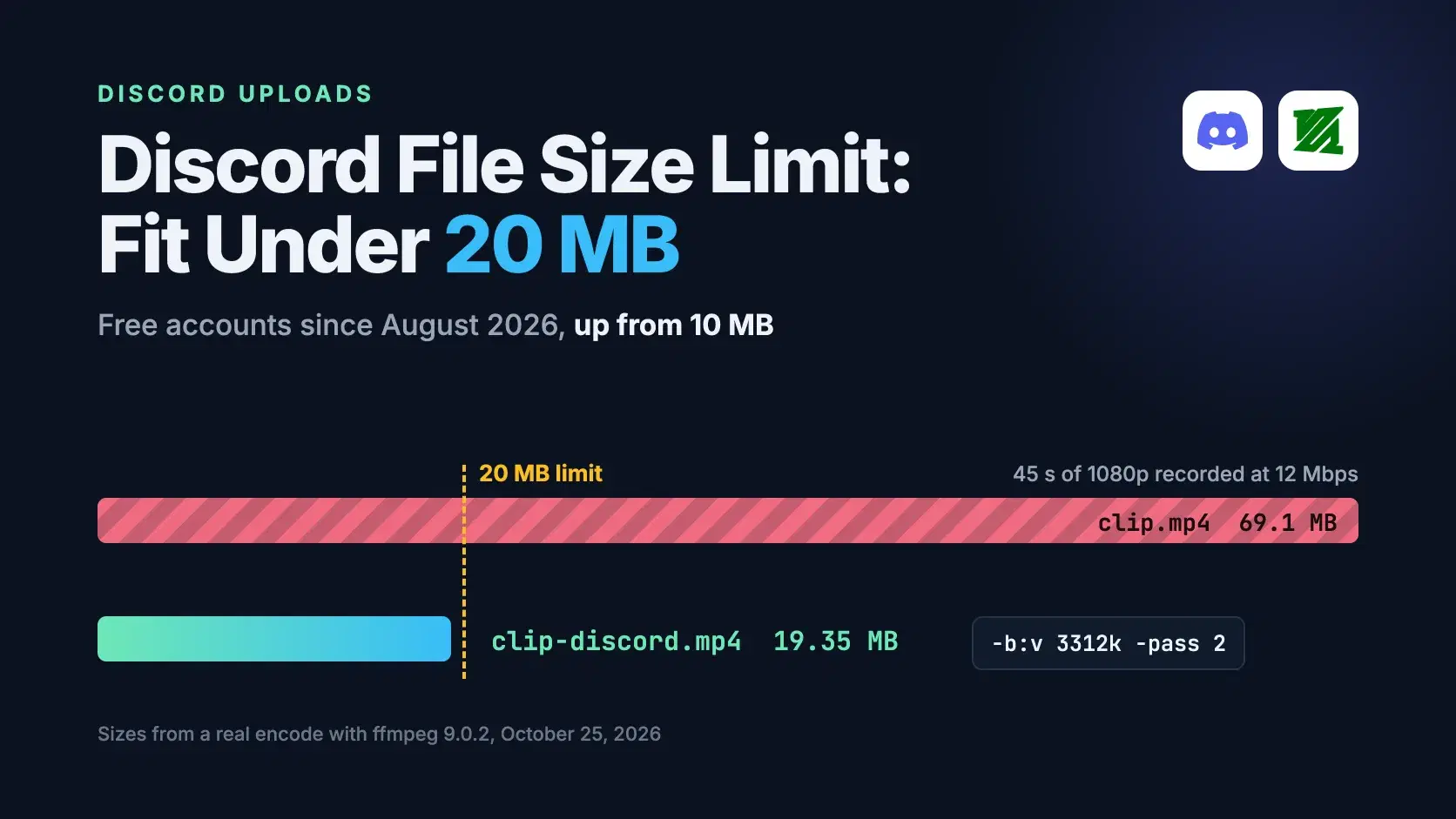
Discord's file size limit is 20 MB per file on a free account, up from 10 MB since August 2026. Nitro Basic raises it to 50 MB and Nitro to 1 GB. To fit a video under 20 MB, set the video bitrate to the size budget in bits divided by the clip's length in seconds, subtract the audio bitrate, and encode in two passes.
The catch is that Discord now measures the original file. Its File Attachments FAQ (checked October 25, 2026) says mobile apps used to compress a file first and only then complain, and that every platform now checks the size before compression, so a 69 MB screen recording has to be shrunk before you hit upload.
Discord's Upload Limit for Each Plan in 2026
Every limit applies per file, and the highest one available to you wins: your own Nitro plan or the server's boost level, whichever is larger. These are the numbers in Discord's own help center and developer docs as of October 25, 2026.
| Account or server | Per-file limit | Where it applies |
|---|---|---|
| Free account | 20 MB | everywhere |
| Nitro Basic | 50 MB | everywhere |
| Nitro | 1 GB | everywhere |
| Server at Boost Level 2 | 50 MB | all members, in that server |
| Server at Boost Level 3 | 100 MB | all members, in that server |
| Bots and webhooks | 20 MiB by default | each file in an API request; interaction responses can go higher in boosted servers or for Nitro users |
Discord is also testing larger limits. The Server Boosting FAQ describes an experiment that lets some servers raise the limit to 250 MB by spending 5 Boosts on "Larger File Uploads", and the attachments FAQ says select users may get larger limits while Discord experiments. One stale answer remains: Discord's Nitro help article still explains why you need Nitro "to upload more than 10MB of files", which predates the change.
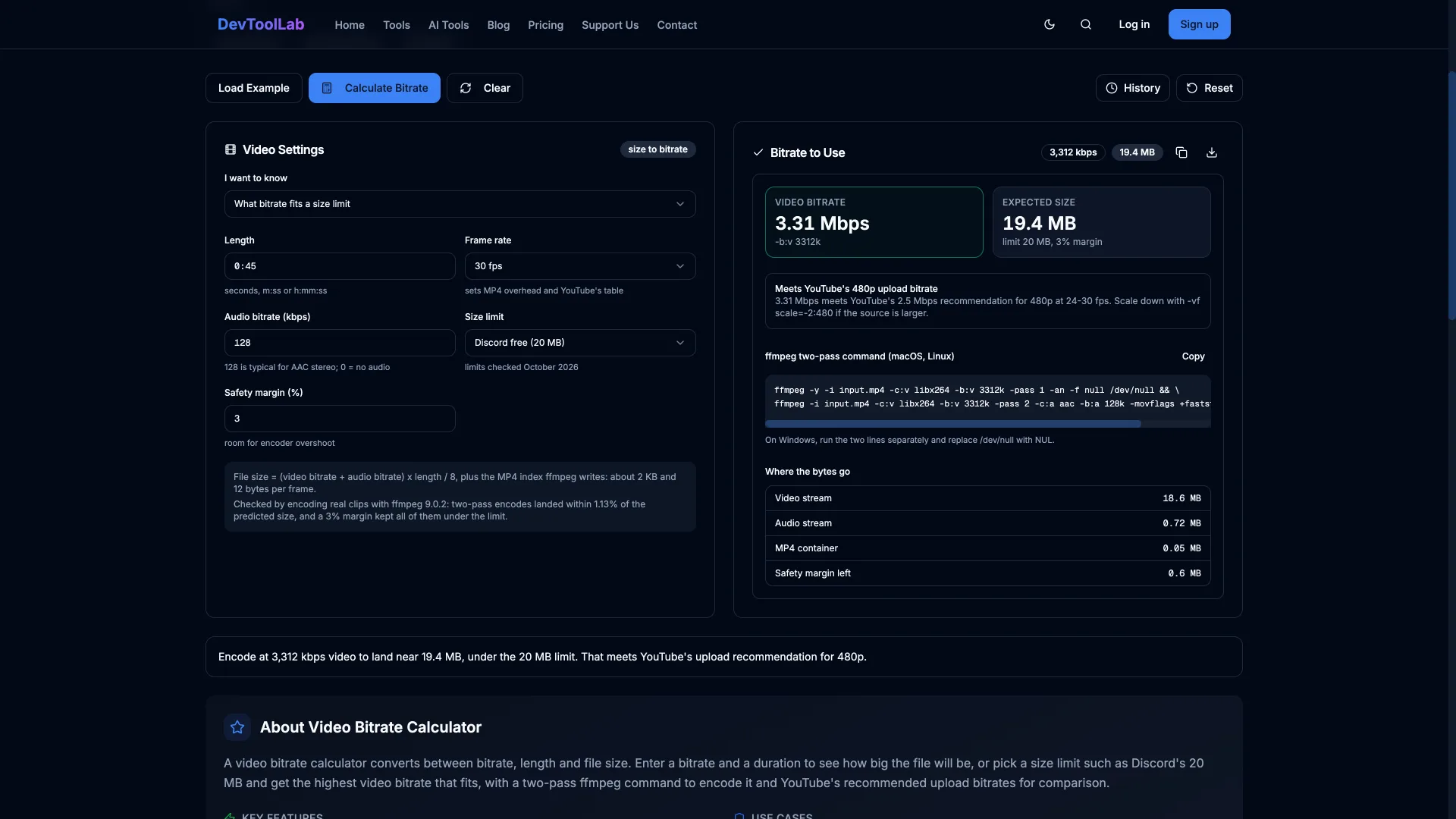
The developer docs pin the number down. The API reference says the default limit "is 20 MiB for all users", which is 20,971,520 bytes, and Discord's developer changelog entry for September 3, 2026 says the default went "from 10 MiB to 20 MiB for users, bots, webhooks, and interaction responses". The help center writes 20MB. Aim for 20,000,000 bytes and the file fits under either reading, with about 970 KB to spare against the API's figure.
The Fastest Way to Get the Right Bitrate
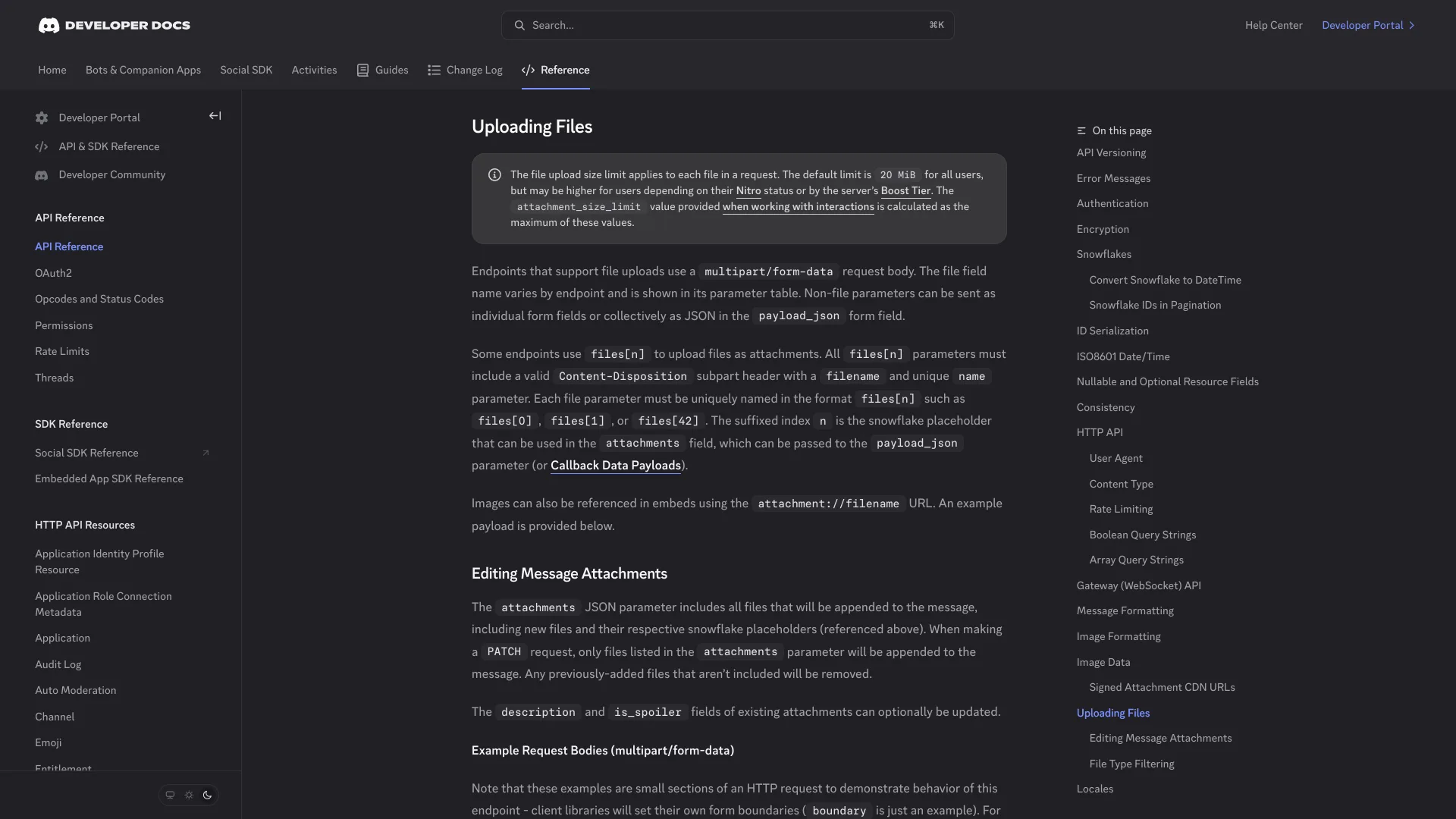
In the Video Bitrate Calculator, set "I want to know" to "What bitrate fits a size limit", enter the clip's length, keep "Discord free (20 MB)" as the size limit and click Calculate Bitrate. It returns the highest video bitrate that fits, the expected file size and a two-pass ffmpeg command with the number filled in. Its Load Example button loads the 45-second clip used throughout this post. The calculator does the math in your browser; it does not encode or upload anything, so you still run the encode yourself.
How the Bitrate Math Works
File size is bitrate multiplied by time. The worked example is a 45-second 1080p clip at 30 fps, recorded at 12 Mbps with 160 kbps audio, which came out at 69,059,603 bytes, more than three times the free limit. Four steps get it under 20 MB:
- Leave headroom. Encoders aim for an average bitrate rather than hit it exactly. In our ffmpeg 9.0.2 tests, two-pass encodes landed up to 1.13% above their predicted size, the worst on a 15-second clip, so keep 3%: 20,000,000 x 0.97 = 19,400,000 bytes.
- Set aside the container. MP4 stores an index entry for every audio and video frame. We measured about 2 KB plus 12.4 bytes per frame, or roughly 45 KB for this clip (a noisier 1080p source came out near 50 KB), so budget 1 KB per second of video and let the 3% headroom absorb the rest.
- Turn the rest into a total bitrate. (19,400,000 - 45,000) x 8 / 45 seconds = 3,440,888 bits per second.
- Give the audio its share. At 128 kbps of AAC audio, the video gets 3,440 - 128 = 3,312 kbps.
At 3.3 Mbps, the calculator flags that the bitrate meets YouTube's 2.5 Mbps recommendation for 480p uploads but not its 5 Mbps for 720p or 8 Mbps for 1080p at 24 to 30 fps, from YouTube's upload encoding settings. Those are generous upload targets rather than a viewing minimum. If the result looks smeared, adding -vf scale=-2:720 spends the same bits on fewer pixels.
Encode It With FFmpeg in Two Passes
FFmpeg 9.0.2, the current release on its download page as of October 25, 2026, is licensed under the LGPL 2.1 or later, and builds that include the libx264 encoder fall under the GPL. Two-pass encoding is what makes the size predictable: the first pass measures how hard each scene is to compress, and the second spends the bitrate budget where it is needed while landing on the average.
Bashffmpeg -y -i clip.mp4 -c:v libx264 -b:v 3312k -pass 1 -an -f null /dev/null ffmpeg -i clip.mp4 -c:v libx264 -b:v 3312k -pass 2 \ -c:a aac -b:a 128k -movflags +faststart clip-discord.mp4
On Windows, replace /dev/null with NUL and put the second command on one line, because the trailing \ is not a line continuation in Command Prompt or PowerShell. The output is H.264 video in an MP4 container, one of the formats Discord's FAQ lists for uploads alongside HEVC and AV1. Run on our clip, the second pass produced this file:
text$ ls -l clip-discord.mp4 -rw-r--r-- 1 root root 19350485 Oct 25 07:56 clip-discord.mp4 $ ffprobe -v error -show_entries stream=codec_name,bit_rate -of compact clip-discord.mp4 stream|codec_name=h264|bit_rate=3302713 stream|codec_name=aac|bit_rate=128327
That is 19,350,485 bytes, under both 20 MB and 20 MiB with about 650 KB of headroom left.
A Script That Sizes Any Clip for Discord
Doing that arithmetic for every clip gets old. This script reads the duration with ffprobe, works out the bitrate with the same 3% headroom and 1 KB per second for the container, and runs both passes:
Bash#!/usr/bin/env bash # Usage: ./discord-fit.sh input.mp4 [target_mb] [audio_kbps] set -euo pipefail in="$1"; target_mb="${2:-20}"; audio_k="${3:-128}" dur=$(ffprobe -v error -show_entries format=duration -of csv=p=0 "$in") # keep 3% headroom, then set aside ~1 KB per second for the MP4 index and the audio video_k=$(awk -v mb="$target_mb" -v d="$dur" -v a="$audio_k" \ 'BEGIN { printf "%d", (mb * 1000000 * 0.97 - 1000 * d) * 8 / d / 1000 - a }') echo "duration ${dur}s -> video ${video_k}k + audio ${audio_k}k" ffmpeg -v error -y -i "$in" -c:v libx264 -b:v "${video_k}k" -pass 1 -an -f null /dev/null ffmpeg -v error -y -i "$in" -c:v libx264 -b:v "${video_k}k" -pass 2 \ -c:a aac -b:a "${audio_k}k" -movflags +faststart "${in%.*}-discord.mp4" ls -l "$in" "${in%.*}-discord.mp4"
Run on the 69 MB clip:
text$ ./discord-fit.sh clip.mp4 duration 45.000000s -> video 3312k + audio 128k -rw-r--r-- 1 root root 19350485 Oct 25 07:57 clip-discord.mp4 -rw-r--r-- 1 root root 69059603 Oct 25 07:48 clip.mp4
Pass a second argument for a bigger limit. With Nitro Basic, ./discord-fit.sh clip.mp4 50 picked 8,486 kbps and produced a 48,524,781-byte file. The third argument sets the audio bitrate, and dropping it to 96 kbps frees a little more room for the picture on long clips.
Uploading From a Bot or Webhook
Bots and webhooks get the same 20 MiB default per file, and Discord's Create Message endpoint caps the whole request at 25 MiB, so a bot posting two 15 MB clips passes the per-file check for each one but fails sending both in one message. Send them as two messages. In a slash command handler, read attachment_size_limit from the interaction payload before you upload a generated file: Discord added the field on April 3, 2025, it is an integer in bytes, and it is already the larger of the invoking user's Nitro limit and the server's boost limit.
Common Errors
Request entity too large. Try sending something smaller in size (JSON error code 40005). The request body is over the limit, usually because several attachments in one message add up past 25 MiB. Split the files across separate messages.
File uploaded exceeds the maximum size (JSON error code 50045). A single file is over the limit for that user and server. Re-encode it with the script, passing the size in MB that the interaction's attachment_size_limit reports in bytes.
The encoded file still comes out over 20 MB. Very short clips overshoot their target bitrate the most. Change 0.97 to 0.95 in the script for 5% headroom, or lower the audio bitrate.
An upload from a phone fails that used to go through. Discord's FAQ says the pre-compression check makes Android uploads hit the limit more often, because Android source files tend to be larger. Compress the file before you share it.
When Not to Squeeze a Clip Into 20 MB
The math gets thin fast. A three-minute clip at 20 MB leaves about 730 kbps for the video, below even YouTube's 1 Mbps figure for 360p, so for anything longer than a minute or two, upload it somewhere built for video and post the link. Discord is not file hosting either: attachment URLs carry an ex parameter, a hex timestamp for when the CDN link expires, so a link copied out of Discord is not a permanent download link.
Conclusion
Discord's free upload limit is 20 MB per file as of October 2026, and it now applies to the file you pick, not to whatever the app would have compressed it into. For a clip of a minute or so, fitting under it is arithmetic: budget 19.4 MB, set aside the MP4 index and the audio, give the rest to the video and encode in two passes. That took the 45-second example from 69,059,603 bytes to 19,350,485 bytes at 3,312 kbps.
Which route to take depends on what you are sending:
- A one-off clip from your desktop: enter its length in the Video Bitrate Calculator and run the two-pass command it prints.
- Clips you share every week: keep
discord-fit.shon your path. It reads the duration and picks the bitrate for you. - A bot: in a slash command or other interaction handler, read
attachment_size_limit, size each file under it, and send files that would push one Create Message request past 25 MiB as separate messages. A plain webhook has no interaction payload, so keep each file under the 20 MiB default. - Anything longer than about 2 minutes and 17 seconds: past that point a 20 MB file leaves the video less than YouTube's 1 Mbps figure for 360p, so host it on a video platform and post the link.
Related DevToolLab Tools
- Video Bitrate Calculator - get the bitrate for any size limit and clip length, with the two-pass ffmpeg command filled in.
- FFmpeg Command Generator - build the trim, scale or audio flags around the encode without memorizing ffmpeg's option order.
- File Size Converter - check MB against MiB when a limit is written one way and your file manager shows the other.
- Discord Embed Generator - build the embed JSON for the webhook message that carries your clip.