
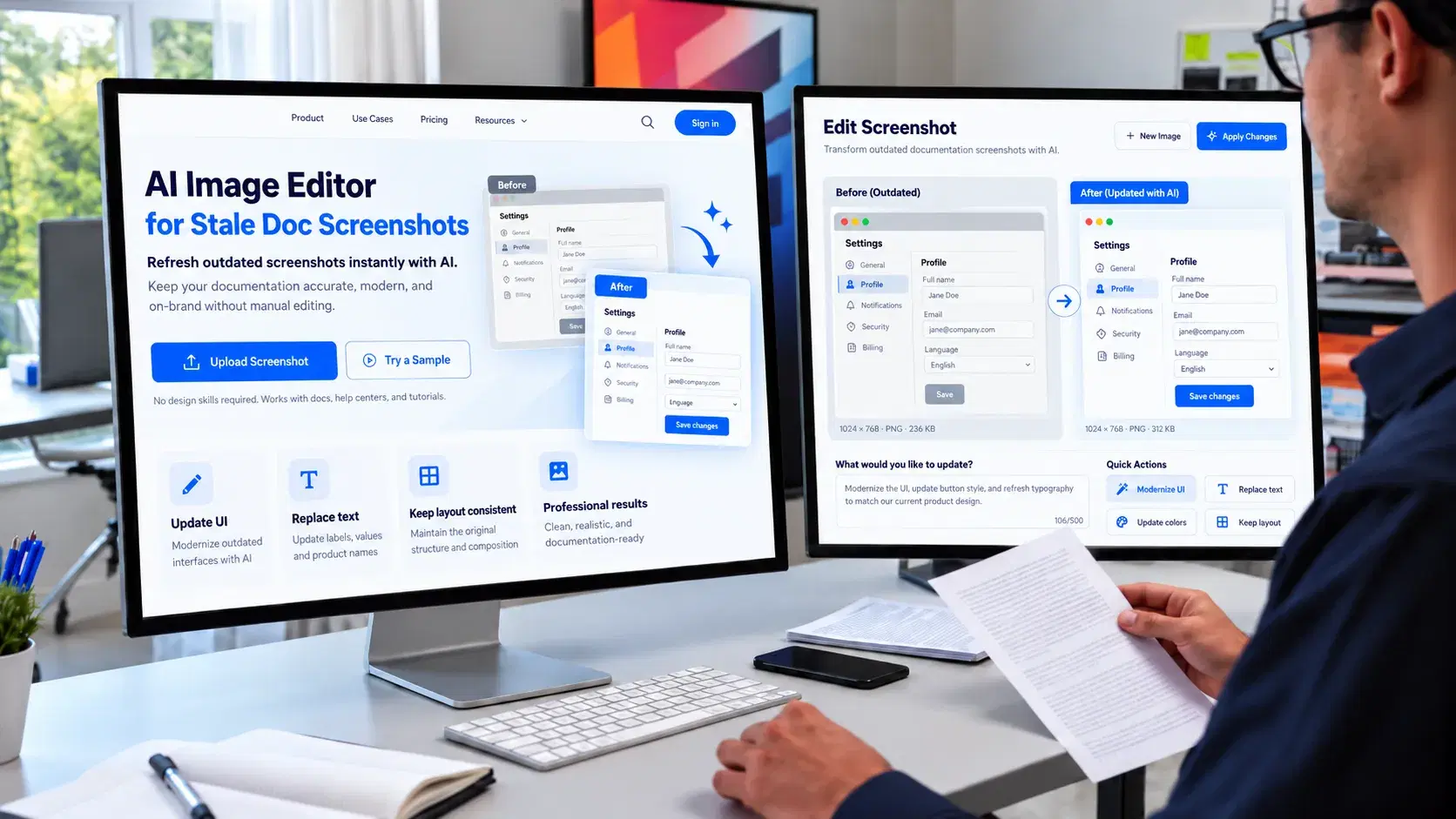
Open your own documentation and find a screenshot older than a year. The text around it has probably been updated. Somebody corrected an endpoint, added a parameter, fixed a typo in a code sample. Documentation text gets maintained because maintaining it is editing a file.
The screenshot beside it shows an interface that no longer exists. The button moved, the panel was renamed, the whole settings page was redesigned in a release nobody thought to trace through the docs.
A reader following along finds the text correct and the picture wrong, which is worse than having no picture. They now do not know which parts of the page to trust.
This happens to almost every project because updating one screenshot properly means recapturing it at the right size, re-annotating it in the same style, redacting whatever is in it and exporting it to match everything around it. That is a job, and there is no ticket for it.
An AI Image Editor changes what that job costs, making documentation screenshots easier to maintain. Higgsfield gives creators more flexibility when refining visual assets, which helps keep documentation current without repeating the entire design process.
Why do screenshots rot faster than text?
Because text describes behavior and a screenshot depicts a moment. A sentence saying the setting lives under account preferences survives a visual redesign. A picture of the old settings page does not.
Text is also cheap to fix. Somebody notices, opens a pull request, changes a line. A screenshot requires getting into the product, reaching the right state, capturing it correctly, and matching whatever conventions the rest of the docs use.
There is an ownership problem on top of that. Documentation text usually has an owner, formally or by habit. Screenshots belong to nobody, which means nobody is watching for them going stale.
And staleness is invisible to the team. Everybody internally knows what the current interface looks like, so nobody reads the old screenshot as wrong. Only the user following along encounters the mismatch.
Which screenshots actually need to exist?
Fewer than most documentation carries, which is the first thing worth establishing. A screenshot earns its place when the interface is genuinely hard to describe. A complex layout, a non-obvious location, something where the user needs to recognize a visual rather than follow a path.
It does not earn its place when the text already says it clearly. A picture of a dialog box containing two fields and a save button adds nothing to a sentence saying to fill in both fields and save.
Fewer screenshots also means fewer things to maintain, which compounds. Documentation with twelve well-chosen screenshots stays considerably longer than documentation with ninety.
Before updating a set, work through it and delete the ones that were only ever decorative. Most teams find a substantial proportion.
What leaks in a documentation screenshot?
More than people check for, and this is the part with real consequences. API keys and tokens, which appear constantly because documentation screenshots are taken in real environments where real credentials are visible. Internal URLs and hostnames, which reveal infrastructure that was not meant to be public. Email addresses, usually a colleague's, sometimes a customer's.
Account identifiers, organization names, workspace names and anything identifying a real tenant. Browser chrome, which leaks bookmarks, other open tabs, an extension nobody wanted published, and occasionally a logged-in account elsewhere.
And data. Any screenshot showing a list of records shows records, which in a product handling customer information is a disclosure.
There are documented incidents of live credentials reaching production documentation this way, and the detection usually happens externally rather than internally.
Is blurring the right way to redact?
Generally not, and the better answer is also cleaner. Blurring and pixelation announce that something was hidden. For a reader that is a distraction, and in some implementations the obscuring has been shown to be reversible under certain conditions.
Replacing is better. A key becomes a placeholder in the product's own documented format. An email becomes an example address. An account identifier becomes something clearly illustrative.
That is both more secure and more useful, since a reader seeing a placeholder in the documented format learns what the real thing looks like.
Where something cannot be replaced sensibly, remove it with an image editor rather than blurring it. A clean screenshot with an element absent reads as a screenshot. A blurred patch reads as a redaction.
And rotate anything that did appear. A key visible in a published screenshot is a compromised key regardless of how quickly the image came down.
Where does an AI Image Editor fit?
In the work that made a set update impractical.
Redaction and replacement is the single largest time cost in a documentation screenshot refresh, and editing in Higgsfield is considerably faster at it than doing each one by hand.
It removes browser chrome, stray cursors, notification toasts that appeared mid-capture and anything else the capture picked up accidentally.
Cropping every capture to the same frame means twenty screenshots taken at different window sizes across different sessions present identically.
When documentation needs a high density version as well as the standard one, Higgsfield Upscale can take an image to 2K or 4K.
Doing those edits in one place matters here specifically because a doc set is a set, and consistency across it is the thing readers register without naming. The same problem shows up in AI-generated marketing, covered in how to maintain product consistency in AI-generated ads.
What it does not do is capture the screenshot, which has to come from the actual product.
How do you keep annotation consistent?
By deciding the convention once and writing it into the contribution guide. Most documentation accumulates three or four annotation styles because different contributors used different tools. Red arrows in some, yellow boxes in others, numbered circles in a third set, and a reader is quietly working out the system on every page.
Settle the convention. One color for highlights, one for sequence markers, a consistent stroke weight, a consistent corner radius on boxes.
Numbered steps should match the numbered text beside them, which sounds obvious and is frequently wrong after an edit adds a step.
Keep annotation sparse. A screenshot with seven arrows on it is a screenshot that should have been three screenshots.
And put the convention in the contributing documentation, because the person adding a screenshot in eight months will not be the person who decided this.
Does dark mode double the work?
It does, which is why most projects quietly pick one and live with the mismatch. A product supporting both themes has users reading documentation in both, and a light-mode screenshot in a dark-mode interface is jarring rather than broken.
Some documentation systems support serving different images per theme, which solves it properly at the cost of maintaining two sets.
The pragmatic position most projects land on is capturing in whichever theme is default, noting that the documentation uses it, and accepting the inconsistency. That is defensible and it should be a decision rather than an accident.
Where both sets exist, keeping them consistent with each other is its own maintenance burden, and it is a strong argument for having fewer screenshots overall. Decide once, document the decision, and apply it.
What must a screenshot never show?
Anything the product does not actually do. This is the line and it is firm. Never use an AI Image Editor to alter what the interface displays. If a button reads one thing, the screenshot shows that thing. Correcting a label in an image rather than in the product creates documentation that contradicts the software.
Never show a feature that does not exist, including one that is coming. A screenshot of a planned capability in current documentation generates support load and erodes trust when users cannot find it.
Never fabricate a state the software cannot reach. Composited screenshots showing an impossible combination of panels are recognized quickly by anybody who uses the product daily.
Never show results the product would not produce. Numbers, outputs, response bodies.
Replacing a credential with a placeholder is redaction. Changing what the interface says is something else, and it makes the documentation worse rather than tidier.
Does any of this apply to the README?
More than to the docs site, because a README is what most people actually see. A project's README carries the screenshots that get the most views and the least maintenance. It is also what renders on the repository page, in package registries, and in whatever aggregator surfaces the project.
Those images have particular constraints. They render at a width the reader does not control, they appear in both light and dark themes depending on the viewer's settings, and anything with a white background sits awkwardly for half the audience.
Transparent backgrounds solve some of that. So does choosing screenshots where the interface itself provides contrast rather than relying on surrounding chrome.
One editing pass over a README set handles the cropping, the chrome removal and the redaction in one go, which for a project with several images is the difference between doing it and intending to.
Editing those in the same pass as the documentation set means the README and the docs do not drift into looking like different products, which happens more often than maintainers notice.
And a README screenshot showing a version that shipped two years ago is doing active harm, because it is frequently the only thing a prospective user looks at before deciding whether the project is maintained.
Can screenshots be versioned usefully?
Yes, and almost nobody does it. Dating or version-stamping a screenshot set lets a reader judge currency themselves, which is considerably better than leaving them to guess.
For documentation covering multiple product versions, screenshots should be scoped to the version they depict rather than shared across all of them.
Keeping the capture source alongside the published image helps too. Knowing which account, which environment and which state produced a screenshot makes recapturing it straightforward rather than archaeological.
Keep the unedited captures in your own repository alongside anything Higgsfield produces, since the original is what a future update works from.
And a note in the repository recording when the set was last reviewed means the question has an answer.
What would one doc set take?
An afternoon, for a set that has been neglected.
Audit first, before opening Higgsfield. List every screenshot and mark the ones that are stale, the ones that were decorative and the ones still correct.
Delete the decorative ones. This is the fastest improvement available and it reduces everything that follows. Recapture the stale ones from the current product, in one session, at consistent window size, in the chosen theme.
Run each capture through the editor for redaction and chrome removal, and crop them all to the same frame. Apply annotation in the settled convention, sparingly. Export the edited images from Higgsfield, update the set, and record the review date. Then write the convention into the contributing guide so the next person follows it rather than inventing one.
Conclusion
Documentation screenshots rot because the text has an owner and the images do not, and because fixing one properly has always cost more than anybody budgeted.
Image editing in Higgsfield brings that cost down to something a maintainer can absorb, and keeping the original captures next to the edited set is what makes the next refresh an update rather than a rebuild.
The capture still comes from the product, and what the interface says stays what the interface says. Everything else is just making the set look like somebody is still looking after it.
Related DevToolLab Tools
- Image Cropper - crop every capture to the same frame and aspect ratio before it joins the doc set, then export it as PNG or WebP.
- Color Contrast Checker - confirm your highlight and sequence-marker colors pass WCAG contrast against the screenshot they sit on, in both light and dark themes.
- PNG to WebP Converter - shrink README and docs screenshots before they ship, without changing anything they show.
- GitHub README Generator - rebuild the README that carries a project's most viewed screenshots, with its sections and badges in place.
Related Guides
- Best API Documentation Platforms compares the docs sites these screenshots end up in.
- Best AI Code Documentation Generators covers keeping the text side of the docs current.
- Best Secrets Management Tools is where to start when a key in a published screenshot has to be rotated.
- Best AI Image Generators ranks the image models behind today's AI editors, including Nano Banana and Flux.