
Amazon S3 is a scalable cloud-based object storage service that allows you to store massive amounts of data in the cloud. However, managing files via the web console or command line isn’t always convenient for everyday tasks. For example, browsing buckets, uploading new and updated files, retrieving objects, and organizing data may require a much simpler workflow. It’s the S3 GUI client that makes routine management of Amazon S3 objects simpler, safer, and more efficient, as it transforms complex text commands and JSON configurations into intuitive visual actions. In this article, we’ll review six Amazon S3 clients and compare their key features, pricing, advantages, and disadvantages.
Top Amazon S3 Clients to Consider
CloudMounter
This is a centralized app that allows you to mount an S3 bucket as a drive and work with online files just as you would with local ones. CloudMounter mounts S3 buckets as disks and supports multiple accounts, allowing you to work with remote files alongside local folders. In addition, CloudMounter consolidates access to S3 and other supported cloud storage services into a single workflow.
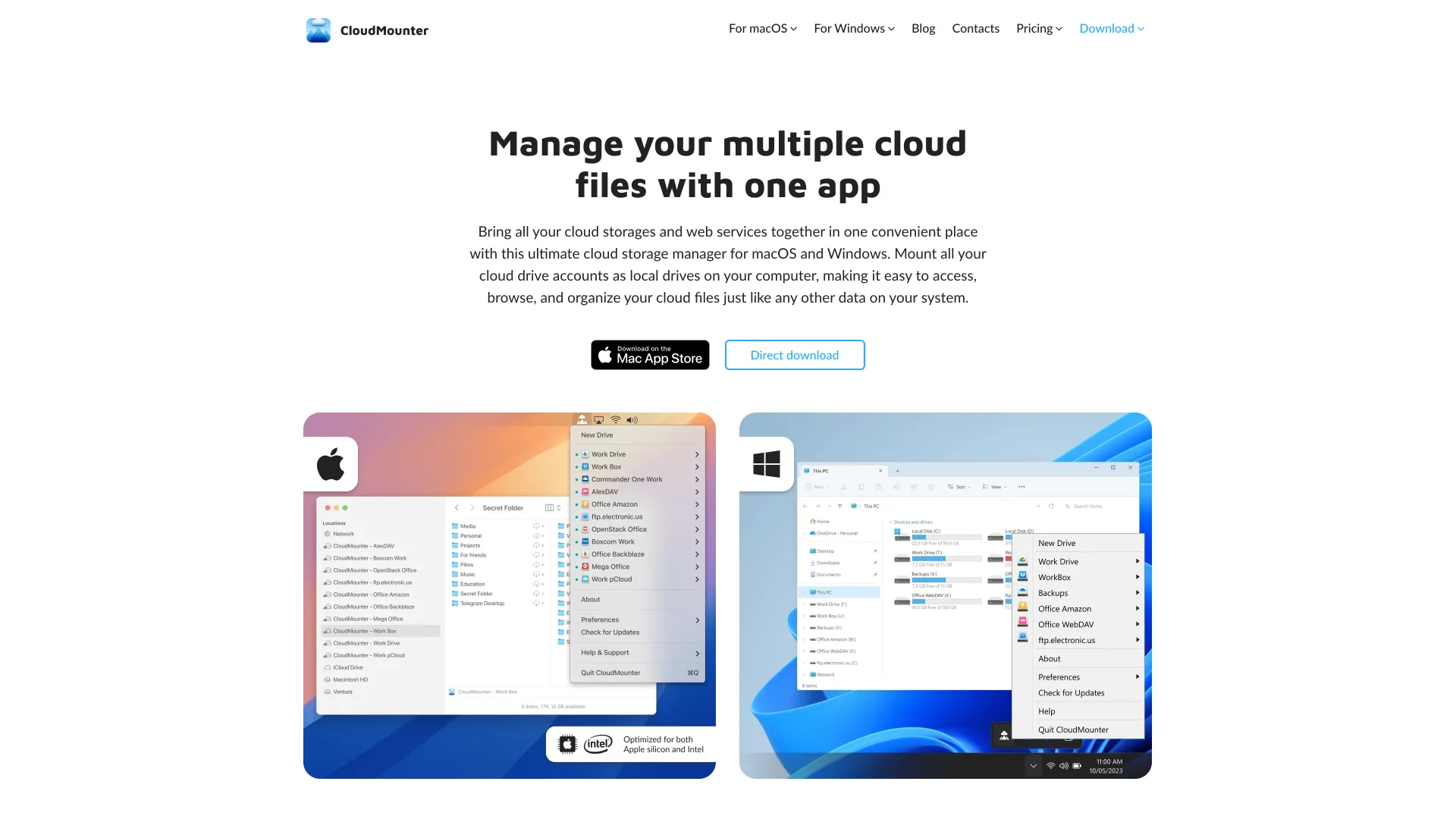
For example, a developer can connect to an S3 bucket using credentials with the appropriate access permissions, open it in Finder next to the local project folder, upload the updated file, and check whether it has appeared in the correct location in the remote storage. This approach simplifies day-to-day work with files without requiring you to download the entire contents of the bucket to your computer in advance.
CloudMounter supports access to remote files when necessary, although local caching may still occur. The program uses the macOS Keychain to store connection credentials, and users can also enable AES-256 client-side encryption. This is a separate feature that must be configured, and it doesn’t automatically protect all objects in S3.
Best for: S3 access directly in Finder.
Price: can be downloaded for free, but access to Amazon S3 in the Mac App Store version requires a paid plan.
Pros: S3 integration with Finder, support for multiple S3 accounts, on-demand file access without requiring full bucket synchronization, storage of credentials in Keychain, and the option for additional client-side encryption.
Cons: integration with Finder is designed for macOS users, mounting a bucket doesn’t guarantee offline access to every file, and the program doesn’t replace the AWS Console or IAM tools for managing permissions and bucket settings.
Cyberduck
This is an open-source client for transferring and managing files in remote storage locations and on servers, available for Windows and macOS. It supports Amazon S3, as well as a number of other protocols and cloud services. It’s a convenient option for users who need a standalone application to manage remote files without using the command line.
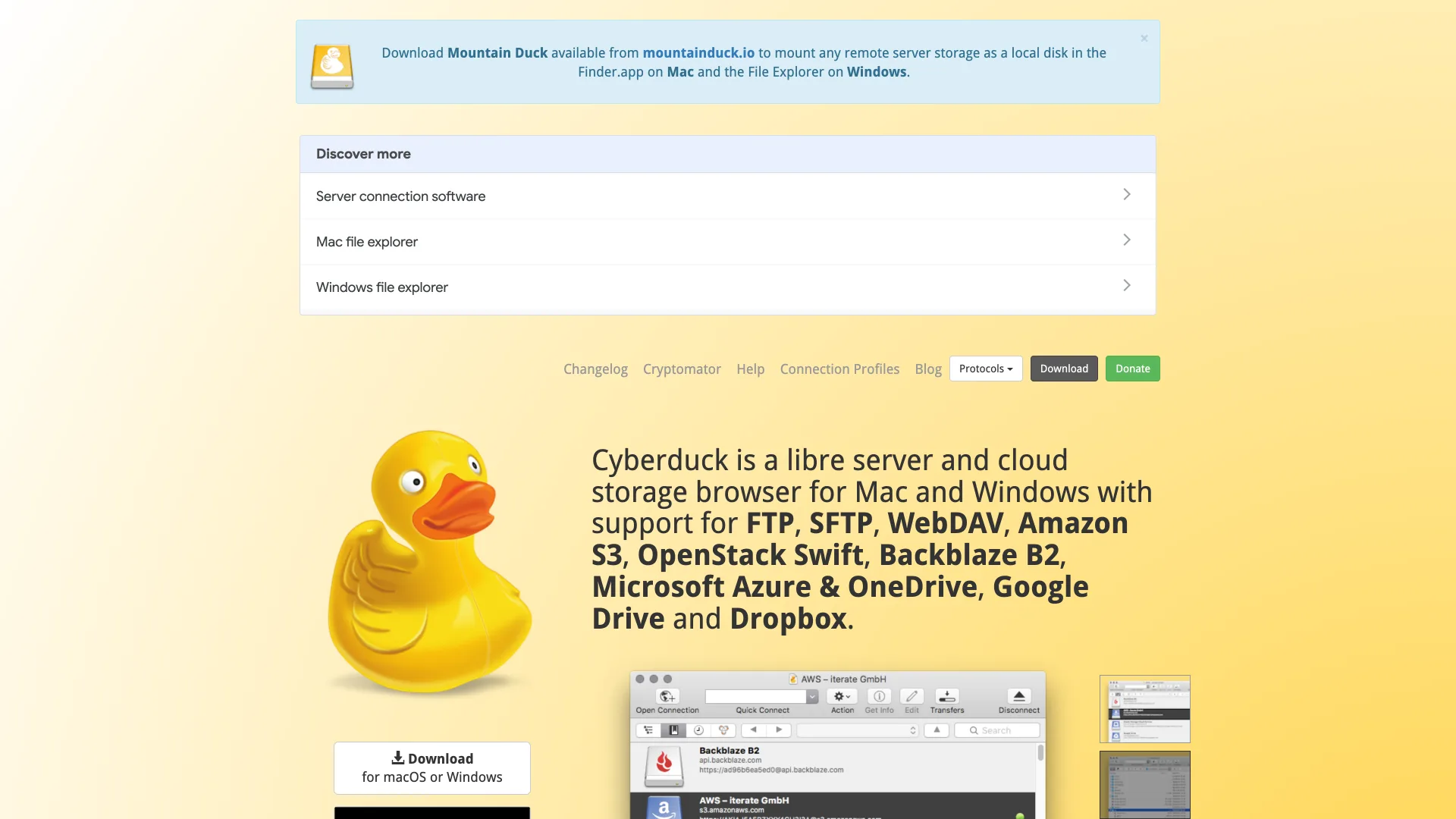
In Cyberduck, you can view the contents of S3 buckets, download files to your computer, and upload them to the cloud by dragging and dropping. The app also supports bookmarks, which let you save connection settings for the storage locations you need and quickly return to them. When working regularly with multiple servers, this helps you avoid having to re-enter connection settings.
Best for: a standalone, open-source Amazon S3 browser
Price: free software
Pros: supports macOS and Windows, works with various protocols and cloud services, and allows you to browse S3 buckets, download, and transfer files.
Cons: the main workflow takes place in a separate program window, rather than in a permanently mounted drive in Finder, which is inconvenient for users who need to integrate remote storage into the file system.
Mountain Duck
This is a program for macOS and Windows that allows you to mount remote servers and cloud storage as if they were a regular local drive in Finder or File Explorer. This allows users to open remote files in their usual programs and manage them almost exactly as they would local documents. Unlike clients that run only in their own window, Mountain Duck integrates access to the cloud storage directly into the system file manager (Finder or File Explorer).
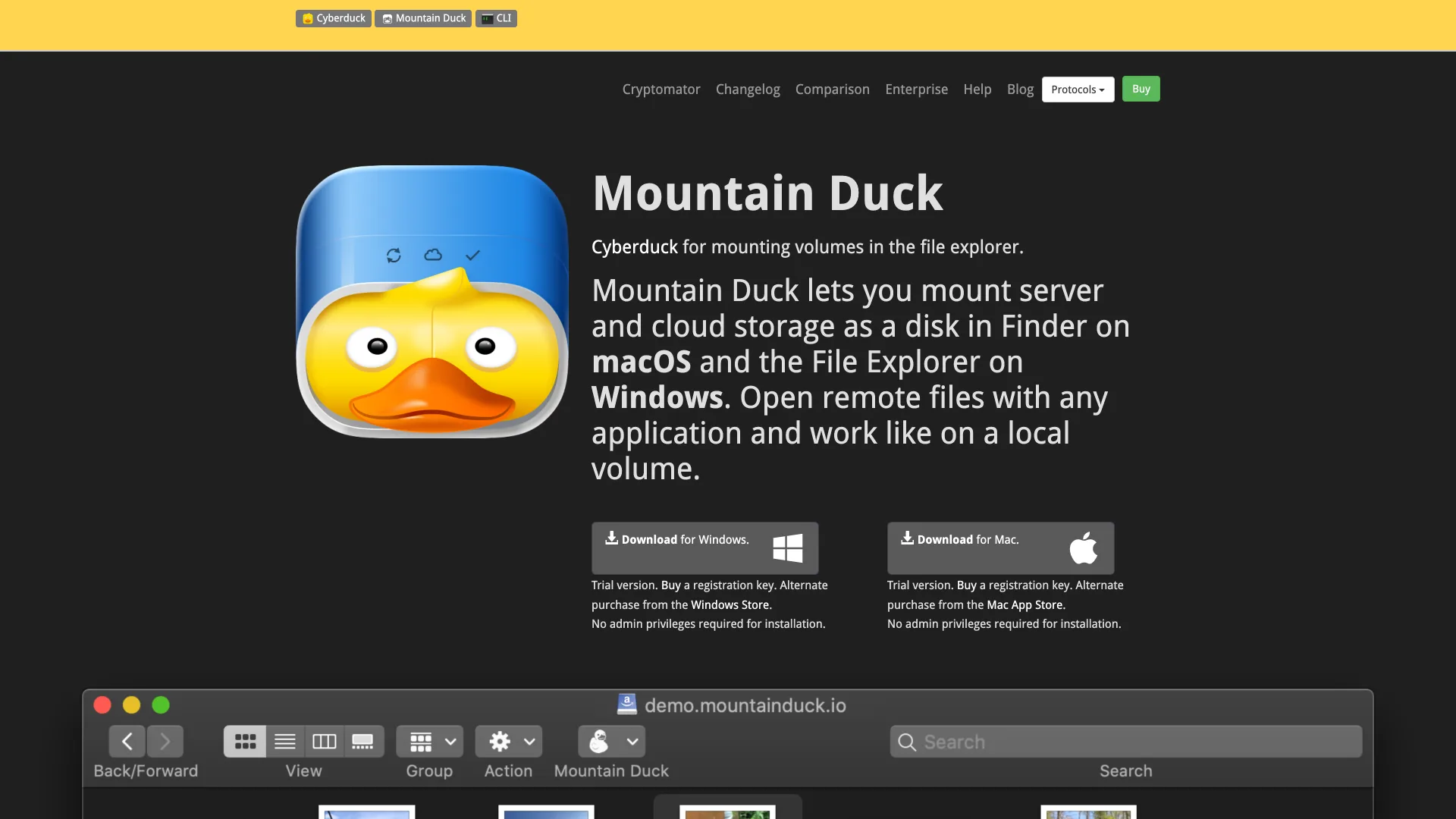
If a team regularly works with project files in S3, users can view the bucket structure using Finder or File Explorer and mark important documents for permanent storage on their computer. When a file is modified, the application can upload the update to the storage in the background once the connection is restored.
Best for: mounted S3 with synchronization options.
Price: a free trial version and a paid license.
Pros: integrates S3 with Finder on macOS and File Explorer on Windows, and allows you to mark selected files and folders for offline access.
Cons: synchronization and offline access require local storage space for the cache and file copies, access to files in online mode depends on the availability of a connection to the remote storage, and different connection models work differently.
Transmit
This is an S3 desktop client for Mac that supports a wide range of server types. It supports Amazon S3 and allows you to upload files, transfer them to storage, and manage remote data through a graphical interface.
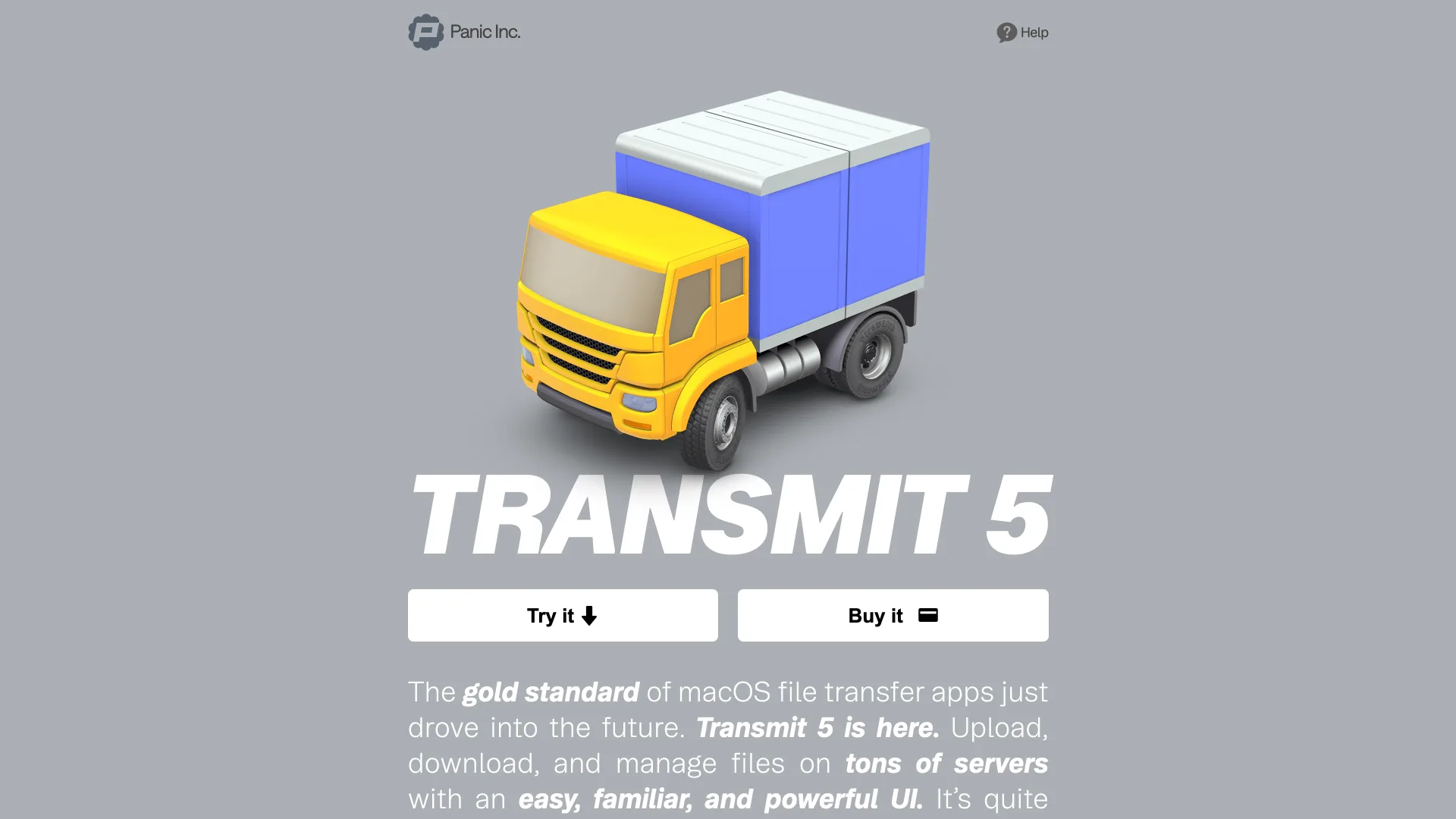
One of the key features of this S3 client for Mac is its dual-pane interface, which allows you to open a local folder in one pane and a remote S3 bucket in the other, so you can quickly find the files you need and transfer them between two locations. This is particularly useful for developers and professionals who regularly update files on a server or work with large datasets.
Best for: Mac users who need advanced file transfers
Price: a 7-day free trial period, after which you must purchase a full license
Pros: a dual-pane interface for working with local and remote files, and the File Sync feature for synchronizing supported locations.
Cons: available only for macOS, the current version doesn’t include Transmit Disk for mounting and accessing Amazon S3 in Finder, and the availability of specific synchronization operations depends on the protocol and storage type.
FileZilla Pro
This is a paid, commercial version of the popular FileZilla FTP client, which also supports various cloud storage services and network protocols. Unlike the free FileZilla Client, the Pro version supports connecting to Amazon S3 and other cloud storage services directly through the graphical interface. Here, you can view the contents of S3 buckets, download objects to your computer, upload files to remote storage, and perform supported operations on remote files and directories. The transfer queue helps you manage multiple tasks: you can view files waiting to be transferred, check for successful and failed operations, and track the status of each task.
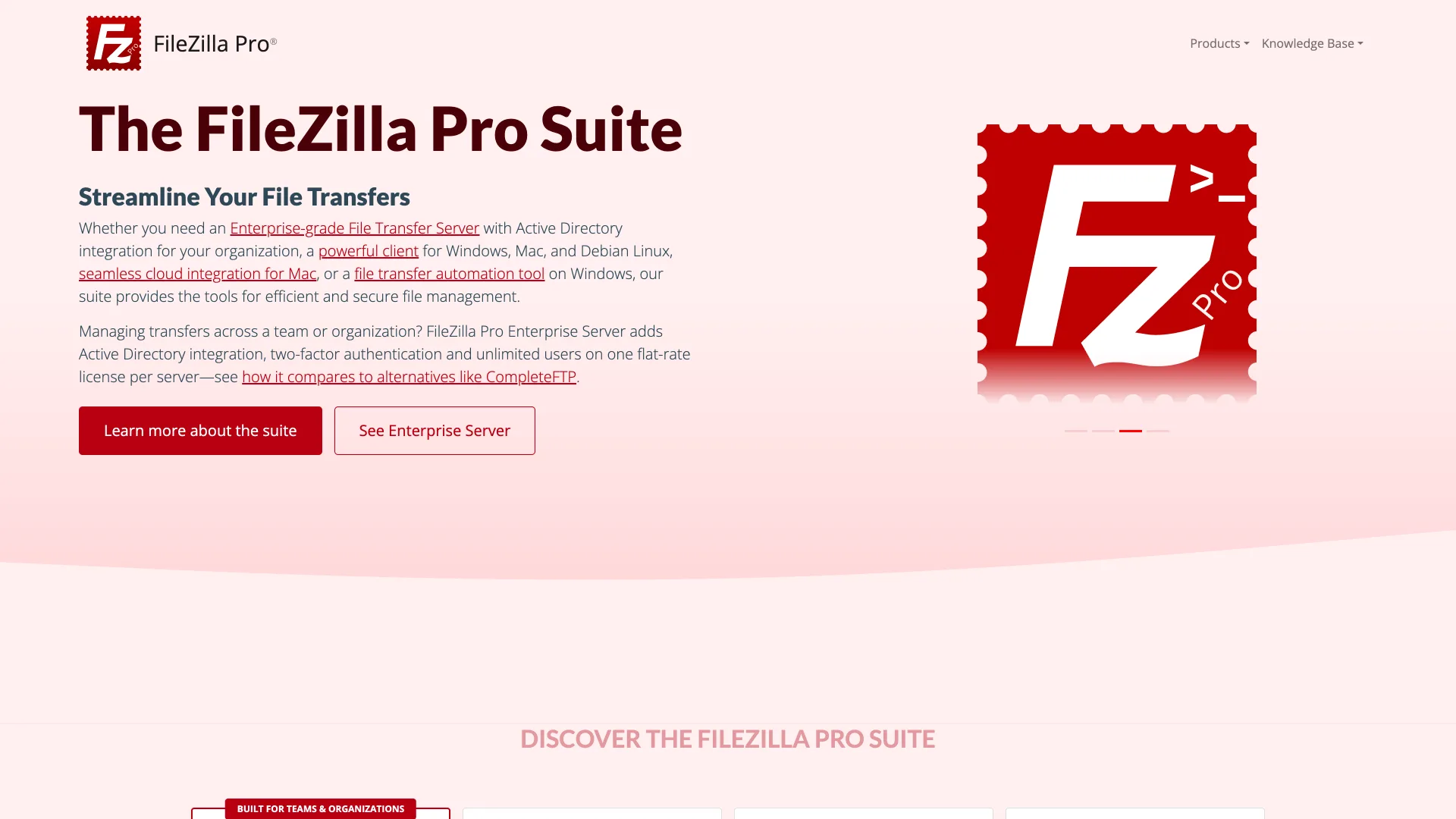
It’s important not to confuse FileZilla Pro with RemoteDrive - a separate product in the same product line. While FileZilla Pro is primarily designed to manage file transfers within its own application window, RemoteDrive mounts supported remote storage services, including Amazon S3, directly into Finder on macOS.
Best for: cross-platform transfer workflows
Price: paid annual license
Pros: supports Windows, macOS, and Debian Linux, supports various protocols and cloud storage services in a single client.
Cons: the main workflow takes place in a separate window, not in the file manager, and a separate product called RemoteDrive handles mounting storage in Finder, not FileZilla Pro client itself.
CS Browser (formerly S3 Browser)
This is a graphical client for the Windows operating system designed to provide convenient management of cloud storage. CS Browser supports Amazon S3, Amazon S3 Glacier, Amazon CloudFront, and other S3-compatible cloud storage services, and allows you to manage S3 buckets and objects through a familiar interface similar to Windows Explorer.
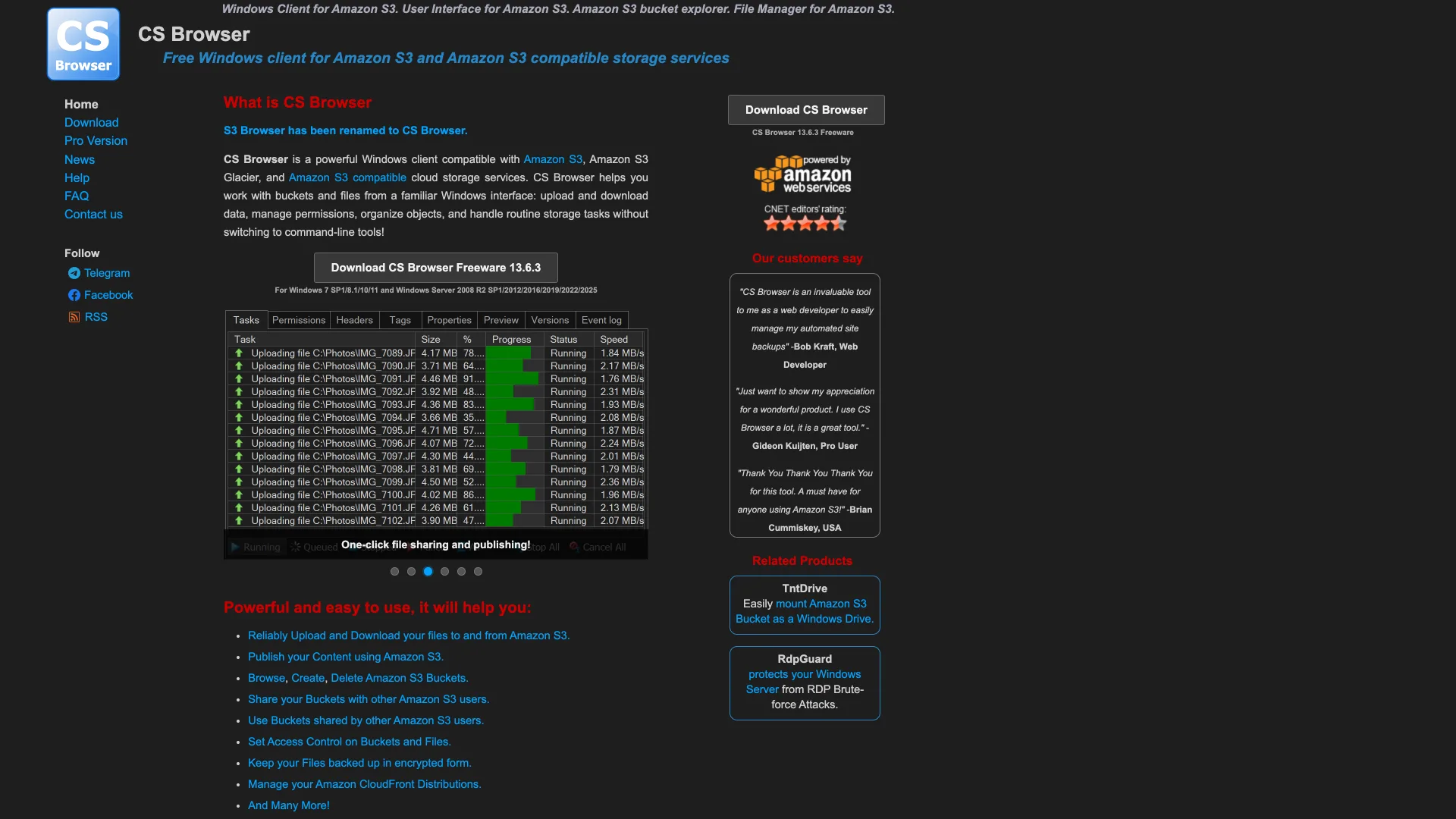
With CS Browser, you can create and delete buckets, upload and download files, and copy, move, rename, and delete objects. The program also supports access control, object versioning, lifecycle policies, and encryption settings.
Best for: Windows-focused S3 management
Price: a free version for personal use and a Pro license for commercial use
Pros: support for multiple accounts and S3-compatible storage services, file synchronization, object versioning, and batch operations.
Cons: works only on Windows, and doesn’t integrate S3 directly into Finder on macOS.
Which S3 client should you choose?
| Client | Platforms | Interface | Best use case |
|---|---|---|---|
| CloudMounter | macOS, Windows | a mounted drive in the file manager | working with S3 and multiple cloud storage services within a single workflow |
| Cyberduck | macOS, Windows | a separate browser window for files | viewing buckets and transferring files via a simple graphical interface |
| Mountain Duck | macOS, Windows | a mounted drive in Finder or File Explorer | access to remote files as if they were local, including synchronization and offline access options |
| Transmit | macOS | a separate dual-pane window | file transfer and working with local and remote locations |
| FileZilla Pro | macOS, Windows, Debian Linux | a separate client with a transfer queue | cross-platform file transfer and task management |
| CS Browser | Windows | a separate interface for managing S3 | managing buckets, objects, and other storage settings in Windows |
Conclusion
So, there’s no best Amazon S3 client, and your choice should be based on your operating system, the level of control you need over S3, and how you’re used to working with files. CloudMounter, which is available on the Mac App Store, is particularly well-suited for macOS users who prefer to work through Finder and want to access Amazon S3 and other cloud storage services within a single work environment. It’s also available for Windows, so it may be a good fit for those who want to use a similar approach across different platforms.