
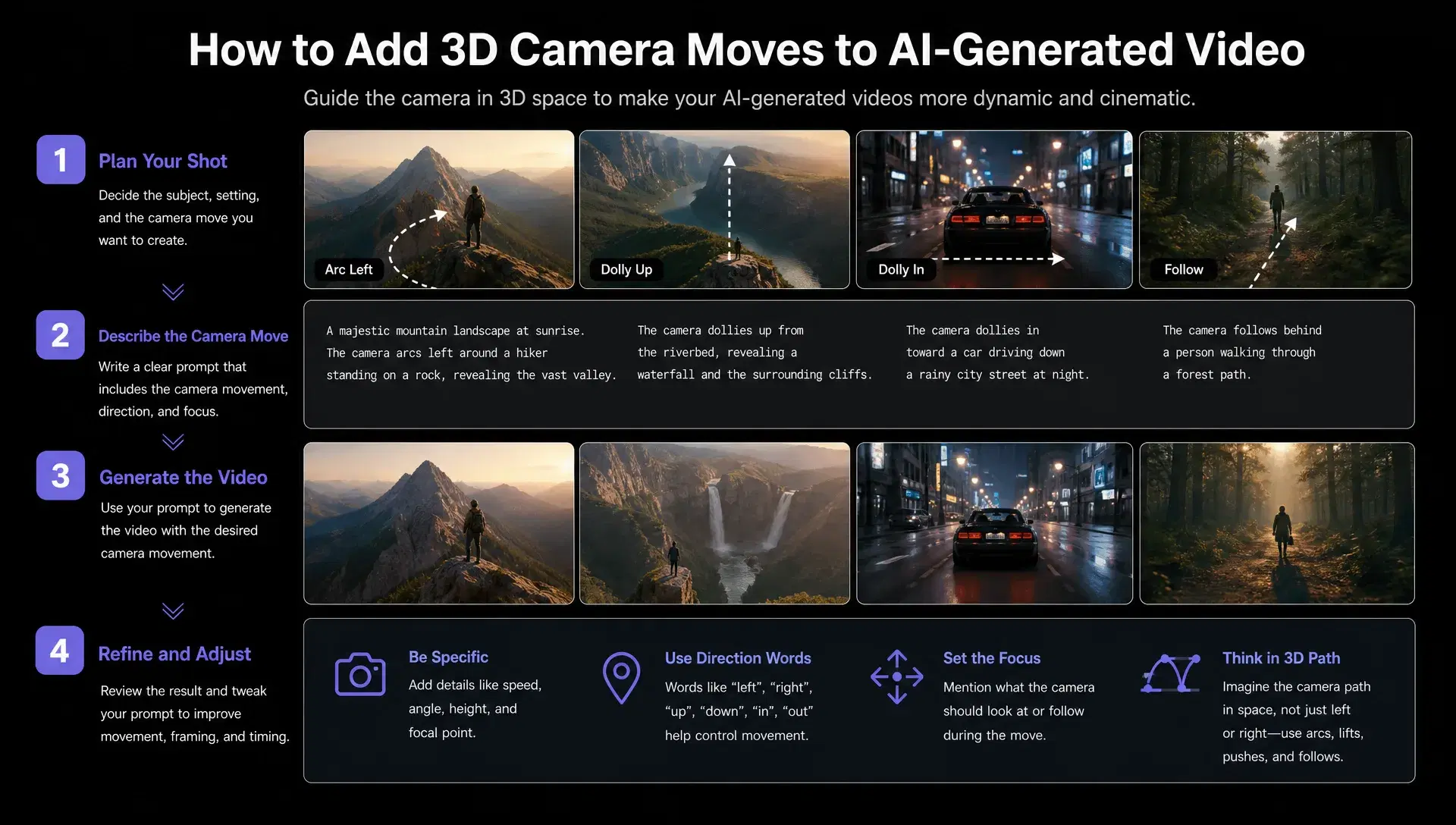
A camera move added to already-generated video is a different problem than generating one from scratch. The scene's geometry, lighting, and subject placement are already fixed, so the move has to work with what's there instead of being planned alongside the generation itself. Get it wrong and the result is the fastest tell that a shot is AI-generated: a background that quietly warps as the angle changes, an object that loses its proportions the moment the camera passes it, a move that reads as floaty rather than physically real.
This isn't a rare failure mode, it's what happens by default when a camera move gets treated as a generic visual effect layered on top of a flat clip rather than computed against the scene's actual spatial structure.
Why some camera moves hold together and others fall apart
The difference between a camera move that looks convincing and one that gives itself away almost always comes down to whether the move is computed against a real model of depth and geometry, or approximated as a 2D visual effect from training data patterns. A model with genuine 3D-space reasoning understands where objects sit relative to each other and to the camera, so a dolly-in or an orbit respects that structure as the angle changes. A purely 2D approach is guessing at what the scene would look like from a new angle without that underlying understanding, which is exactly where warping and proportion loss come from.
invideo agent treats this the same way it treats every other creative decision in a project: as something planned deliberately rather than left to chance.
Decide the move before generating, not after
The temptation with an already-generated clip is to add a camera effect as an afterthought, whatever seems to fit once the shot exists. That's backward from how a real camera decision works on a physical set, where the move is planned as part of the shot's intent before a single frame is captured.
Camera Controls let a director choose a specific move, a slow dolly-in, a crash zoom, a 360-degree orbit, as a planned decision that reflects what the shot is actually meant to accomplish emotionally, rather than a generic effect applied because the tool offered it. A push-in on a product reveal and a whip pan for a moment of energy are different creative choices, not interchangeable defaults.
Match the move to what the scene can actually support
Not every generated scene can support every kind of camera move equally well. A shot with a lot of simultaneous motion, several moving subjects, complex overlapping action, is more likely to break coherence under an ambitious camera move than a simpler scene with one clear subject. Before committing to a complex move, it's worth checking whether the underlying scene's geometry and motion are simple enough to hold up under it.
This matters more for longer or more complex moves. A quick, subtle push-in is far more forgiving of a busy scene than a slow orbit that has to hold the whole scene's geometry together for several seconds.
Keep the camera language consistent across a sequence, not just within one shot
A single camera move can look convincing in isolation and still feel wrong once it's cut against other shots in the same sequence, if the camera language doesn't match. A slow, deliberate dolly-in in one scene followed by a jarring whip pan in the next, with no consistent visual grammar connecting them, reads as directorial inconsistency even when each individual move is technically well executed.
This is where a persistent context engine matters beyond any single shot: invideo agent carries a camera decision across every shot in a project that needs the same treatment, and routes each shot to whichever of its 200+ integrated models fits that particular moment, including Veo 3.1, Sora 2, Kling 3.0, Seedance 2.0, Runway, PixVerse, Hailuo, WAN, Recraft, GPT Image 2.0, and Nano Banana, without the camera language resetting each time a different model handles a shot.
Use a reference clip when a specific move needs to be exact
Describing a precise camera move in words, an exact orbit speed, a specific handheld quality, a particular push-in rate, is genuinely harder than it sounds, and text descriptions of camera motion are one of the more common places a generation misses the intended effect. When a specific, known camera behavior already exists on film, transferring that exact path from a reference clip is more reliable than trying to describe it from scratch.
This matters specifically when a project needs to match an established visual identity, a client's previous campaign, a director's reference film, rather than invent a new camera language from a text prompt alone.
Common mistakes when adding camera moves to generated video
Treating a camera move as a generic effect rather than a planned creative decision. A move applied because it's available, rather than because it serves the shot's intent, tends to feel arbitrary once it's cut into a sequence.
Applying an ambitious move to a scene with too much competing motion. Complex, busy scenes are more likely to break coherence under a demanding camera move than a simpler scene with one clear subject.
Adding a move after generation without checking the scene's underlying geometry. A camera path that ignores how the scene is actually structured is what produces visible warping as the angle changes.
Letting camera language shift between shots in the same sequence. A different move style scene to scene, with no consistent grammar tying them together, reads as inconsistency even when each shot works on its own.
Describing a precise, known camera move in words instead of using a reference clip. Text prompts struggle with exact camera specifics, orbit speed, handheld quality, that a reference-video transfer captures directly.
Conclusion
Adding a 3D camera move to AI-generated video comes down to treating it as a real directorial decision rather than a filter applied after the fact: computed against genuine scene geometry instead of guessed as a flat effect, matched to what the scene can actually support, held consistent as a visual language across an entire sequence rather than reset shot to shot, and pulled from a reference clip when a specific move needs to be exact rather than left to a text description. The technology makes the move possible. Whether it reads as intentional or as the tell that gives away an AI-generated shot still comes down to these same deliberate choices.
For a project generating more than one shot, that consistency matters beyond any single clip. A camera decision that carries across an entire sequence, regardless of which underlying model renders a given shot, is what keeps a film's camera language feeling like one coherent choice rather than a series of disconnected effects.